

The Car Wash Management System in Odoo ERP provides a simple and easy way to manage day to day car wash operations from a single POS dashboard. Users can handle customer bookings, assign technicians, choose services, track car wash progress in real time and complete payments seamlessly. With features like loyalty programs, gift cards, sales reports and multi outlet POS management, the system helps improve service speed, customer satisfaction and gain clear visibility into business performance.
System Overview
A car wash POS system offers a single dashboard to manage your business seamlessly.
Cloud Based POS offers to manage multiple outlets.
Generate membership discounts and coupons that help to enhance the frequent visitor.
Increase revenue by enabling quick customer service.
Car wash POS software provides several types of reports which give you an overall.
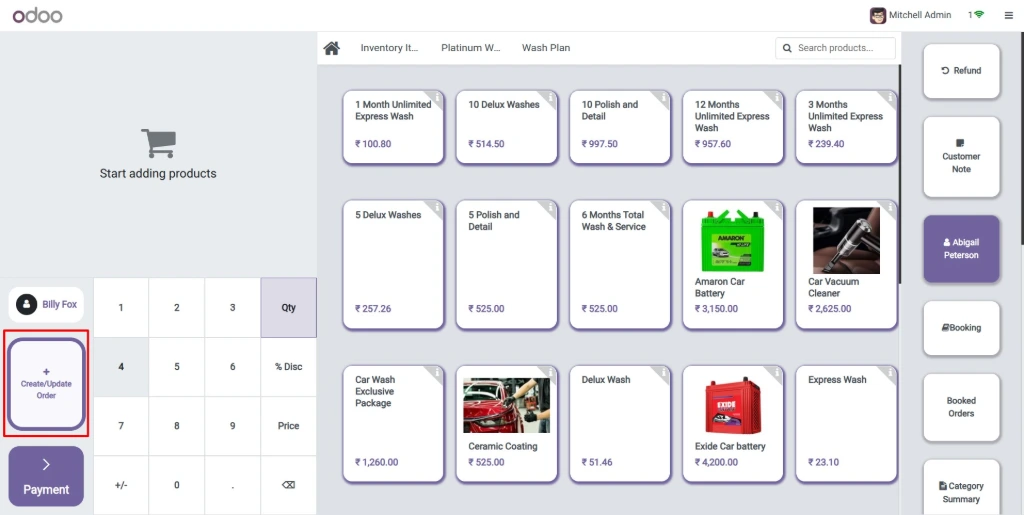
This is the dashboard of the Car Wash Management System Point of Sale (POS), where you can manage and monitor all the operations related to the car wash business. The key components visible on this dashboard are:
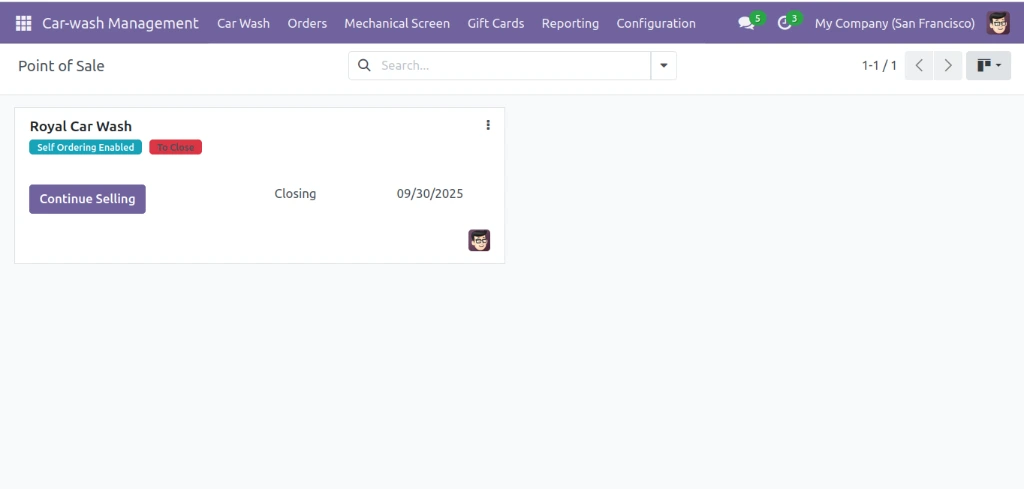
On the Car Wash Management System POS Dashboard, you can easily access essential features using the following smart buttons :
1. Car Wash
This menu takes you to the car wash service management section. It allows you to quickly select, manage and customize car wash services for customers. You can view available packages, set pricing and track service history.
2. Orders
The Orders menu in the car wash management system provides essential tools for managing both real-time transactions and advance bookings. It has three key features: Sessions, POS Orders and Booking Orders.
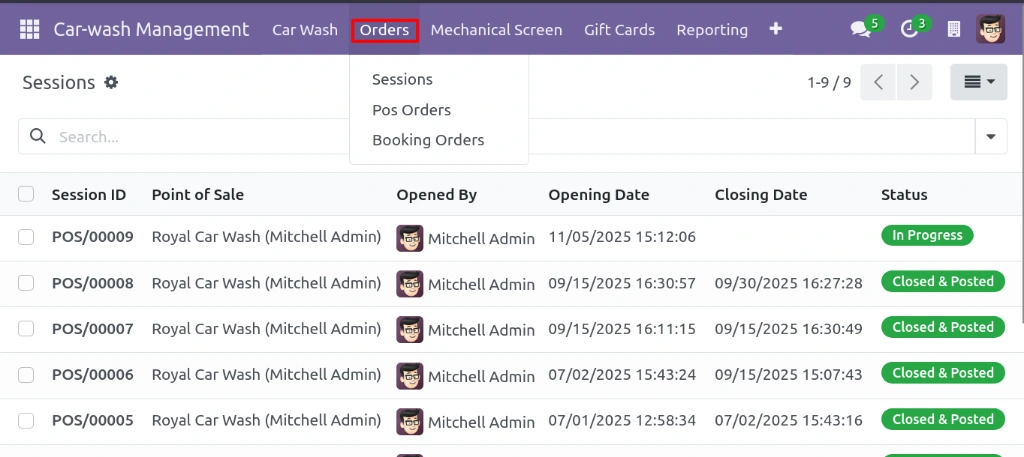
Session
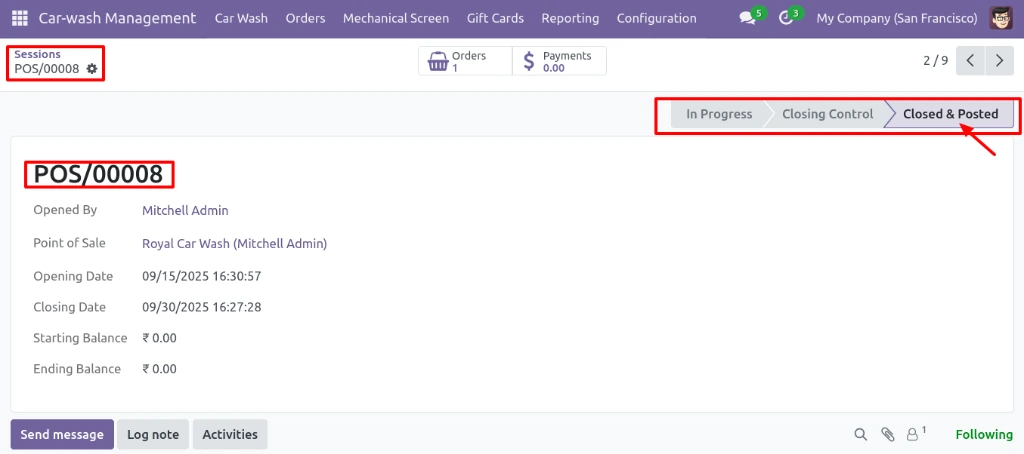
The Sessions section shows all daily sales sessions created in the Point of Sale system. In a car wash business, each cashier or staff member starts a new session when they begin work. All car wash bills and payments for that period are recorded inside that session.
POS Orders
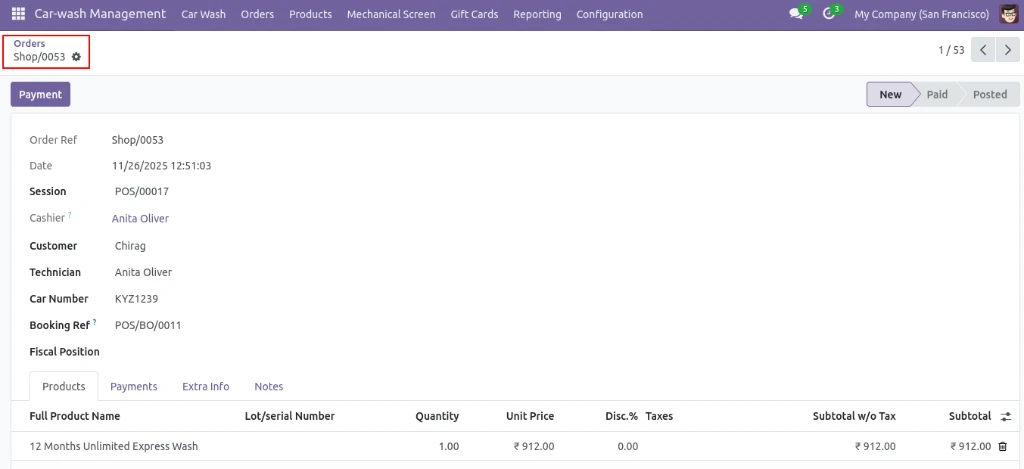
The section shows all the sales orders created from the Point of Sale system. In a car wash business, every time a customer takes a service and a bill is generated, it is recorded here. This list helps you track every order, along with customer details, payment status and the employee who handled the service.
Booking Orders
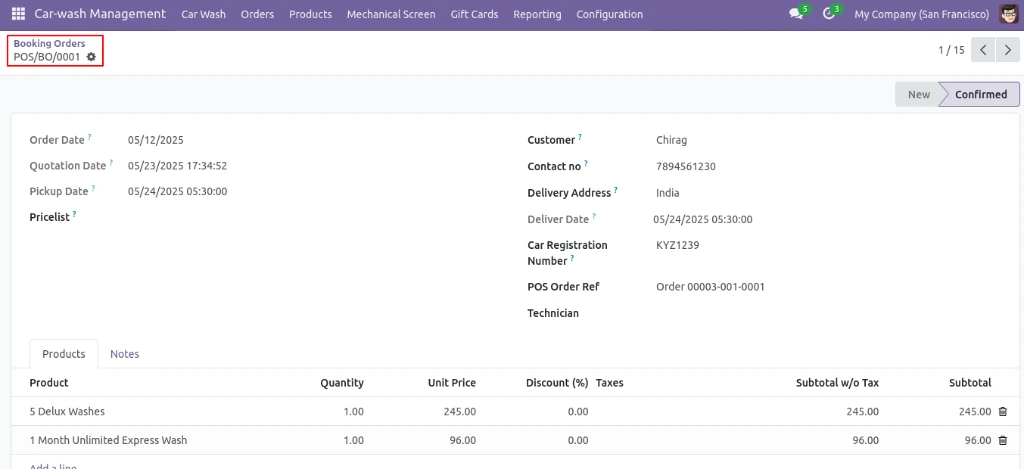
A Booking Order is a record created when a customer books a car wash service. It includes all important details like the customer’s name, pickup time, delivery time and the total amount.This helps the car wash team manage customer appointments and plan the workflow smoothly.
Product
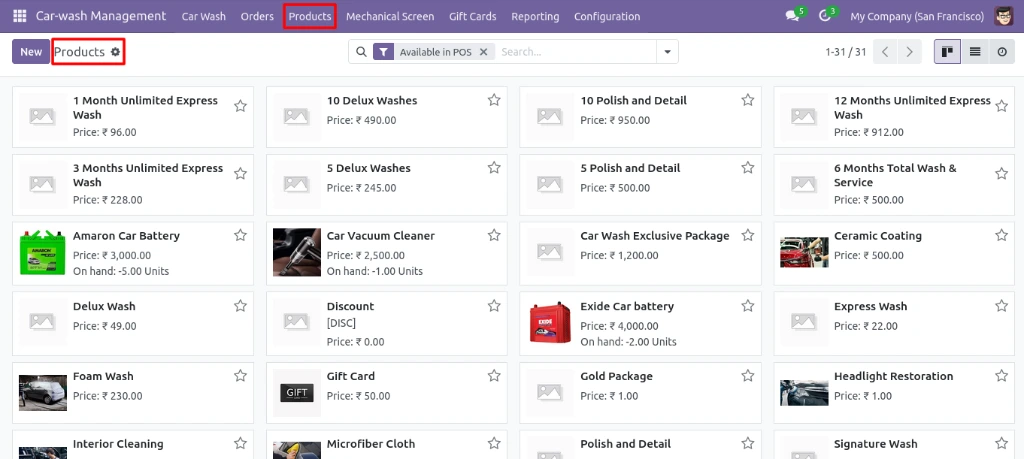
This page lists all the products and services available in the Car-wash Management system. Products can include different types of car wash packages and services.
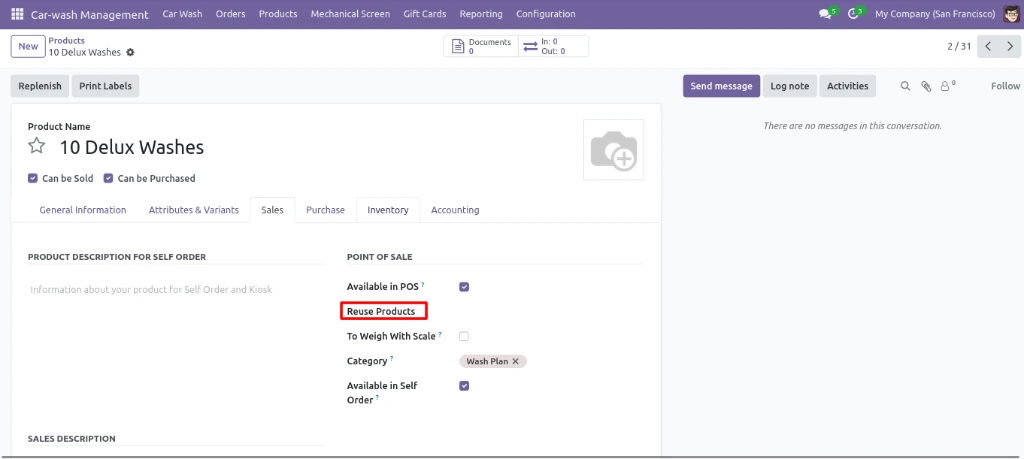
On this page, you can fill in all the basic product details such as Product Name, Product Type, Sales Price, Customer Tax, Cost, Product Category, Barcode and other important information required to create the product.
The reuse products field helps identify which additional storable items are required to complete the services.
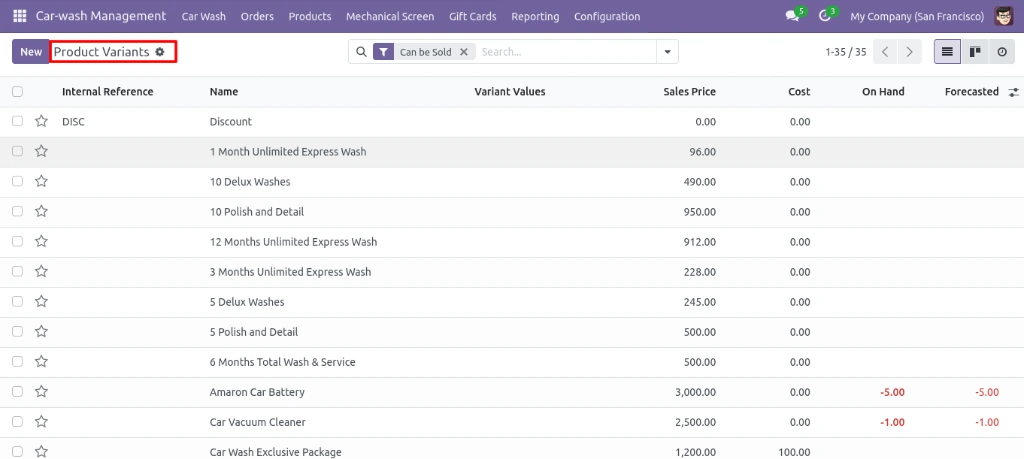
Product Variants
Here you can view all the product variants with their details such as name, variant values, sales price, cost and stock availability.
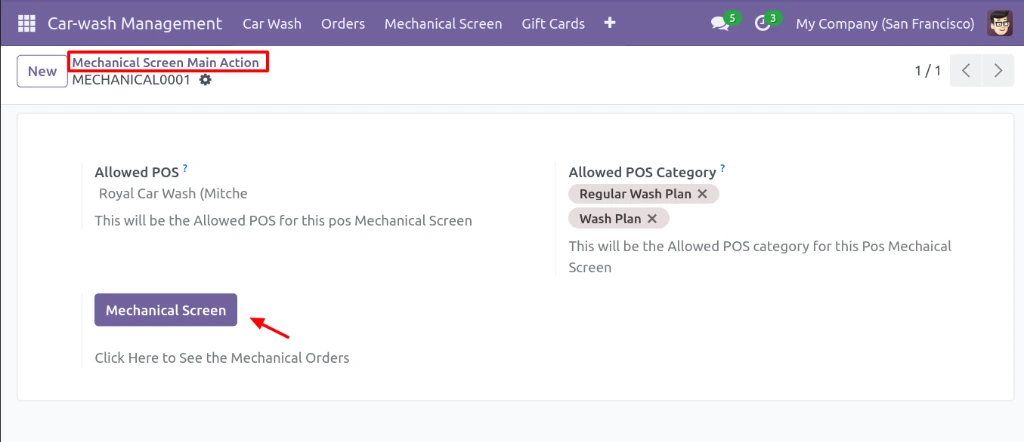
3. Mechanical Screen Main Action
Mechanical Screen Main Action is the feature in Car Wash Management that allows you to manage and control which mechanical services will be shown inside the POS screen.
Mechanical Screen
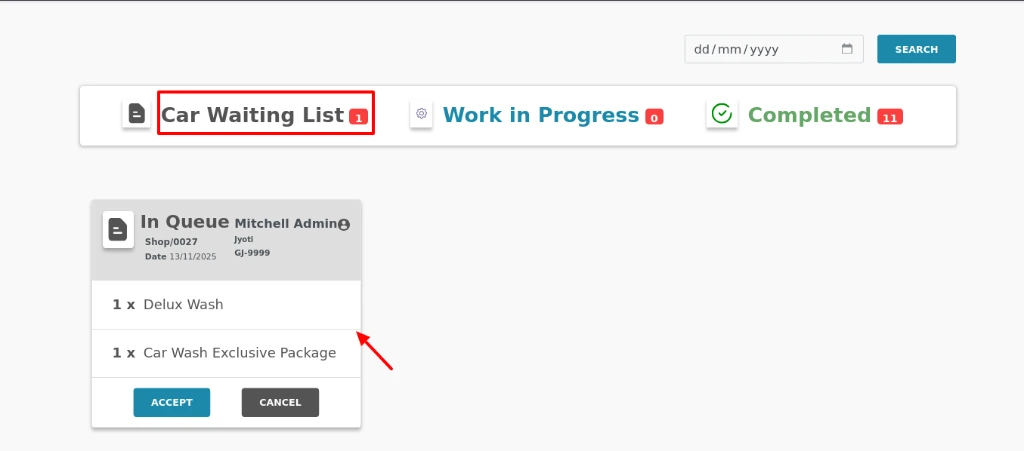
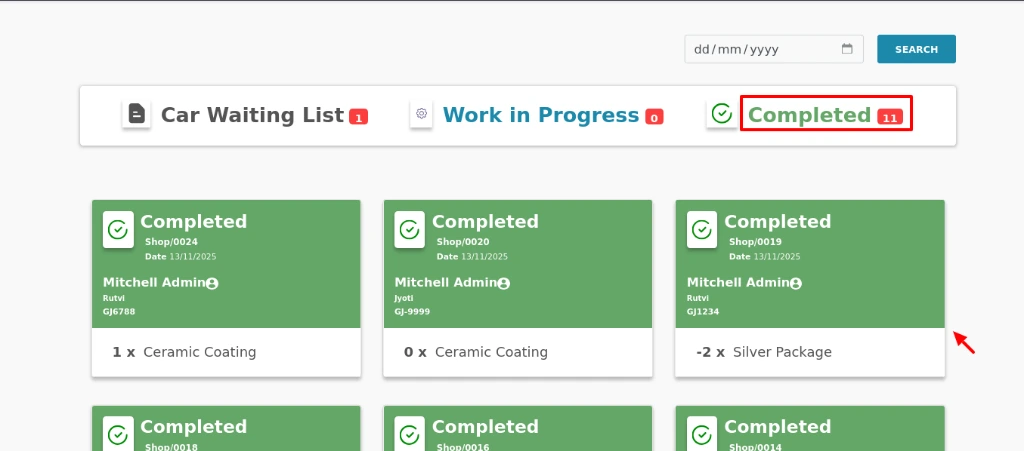
This screen shows the status of cars that are waiting, currently being washed and those that are finished washing. From here, you can accept car wash requests.
Car Waiting List
This tab displays all the car wash requests that have been received but have not yet been started. These requests are in a queue waiting for staff to accept and begin working on them. It helps the staff easily see which cars need attention next and prioritize their work. If a request is here, it means the customer’s car is waiting for service.
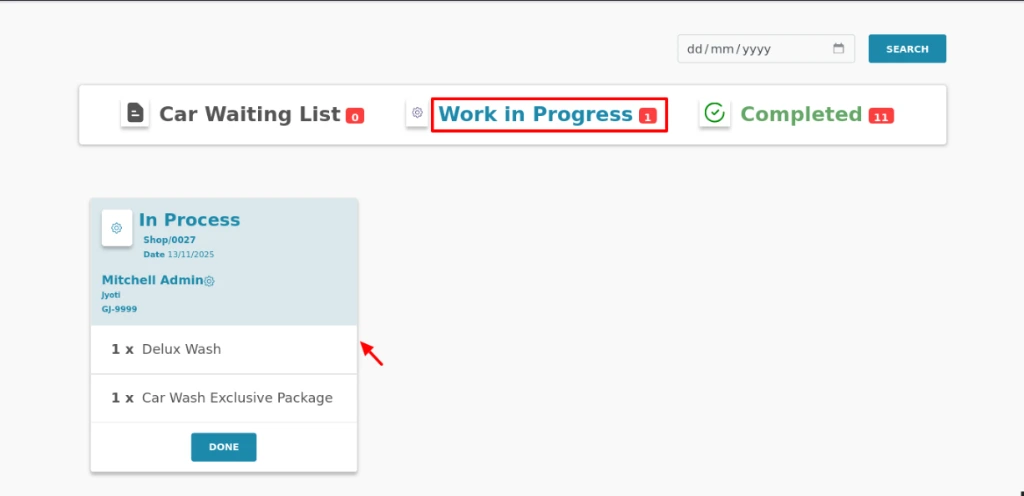
Work in Progress
This tab shows all the requests that are currently being serviced. Once a request is accepted from the waiting list, it moves here. Staff can monitor ongoing jobs, update their progress and ensure each car is being attended to properly. This helps track active work and prevents missing or forgetting any ongoing service.
Completed
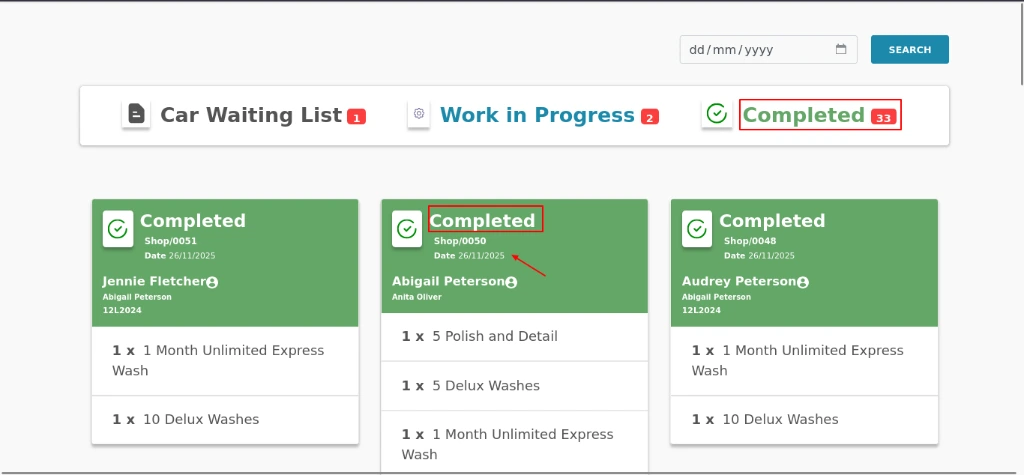
This tab lists all the car wash requests that have been fully completed and closed. It serves as a record of finished work and helps in keeping track of daily or monthly completed orders. Customers’ payments are typically finalized by this stage and staff can refer to this list for reporting and reviewing past services.
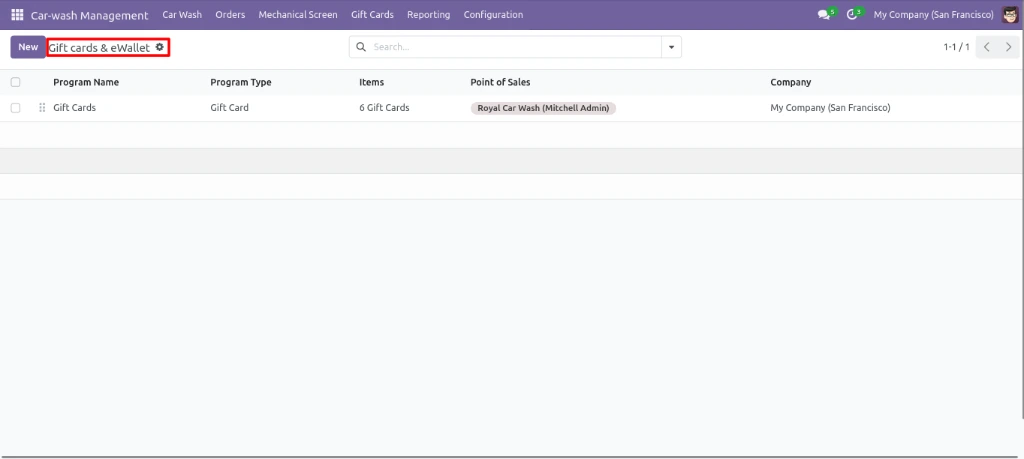
4. Gift Cards, Discounts & Loyalty
This section allows you to create and manage gift cards for your car wash business. These gift cards can be used by customers at the point of sale for easy and cashless payment.
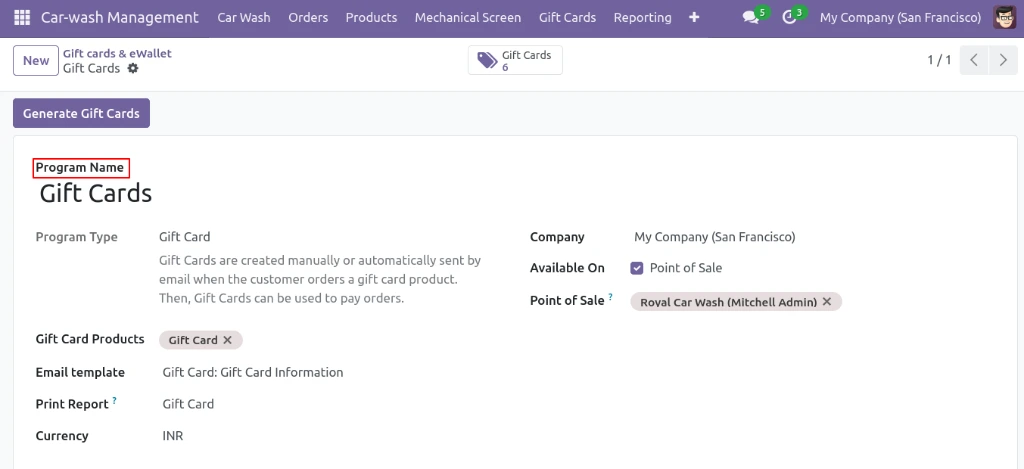
In this section, you can set up the details of your gift card program. Add the program name, select the gift card product, choose the email template and choose where the gift card will be available for use. These settings help you manage how customers receive and redeem gift cards.
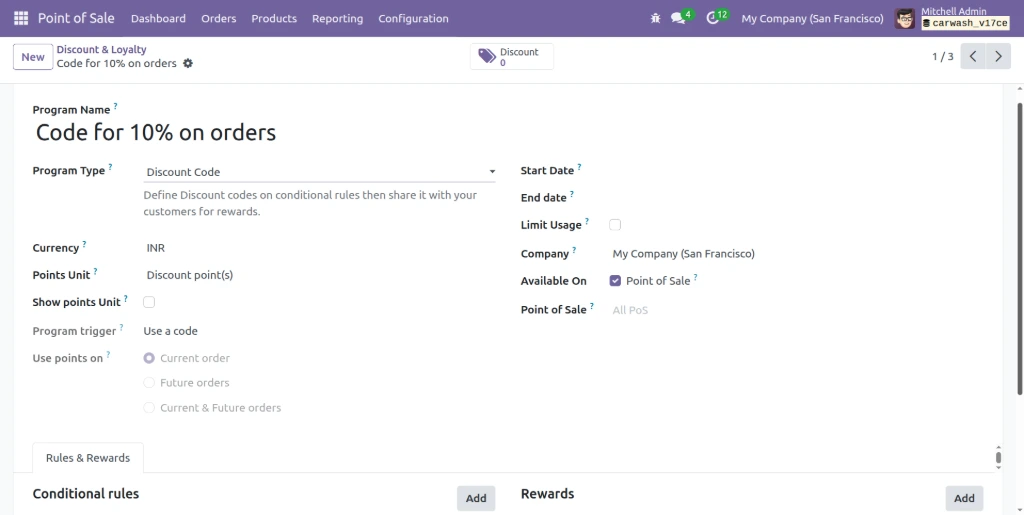
This page shows the list of all gift cards. You can see the card code, balance, expiry date, program and customer name. You can also send the gift card from this page and check its status.
5. Reporting
In the reporting section, you can see different reports related to your sales and POS activity. It helps you check sale details, top selling items and ongoing POS sessions.
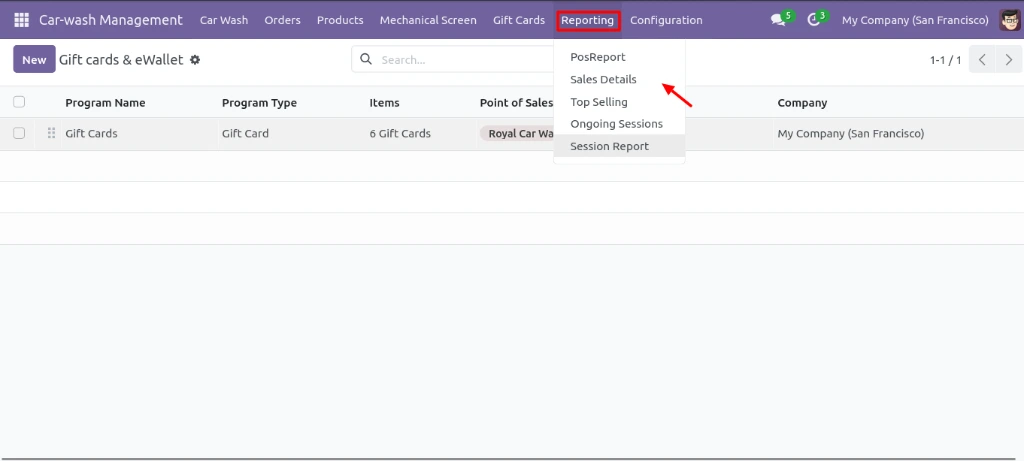
Sales Reports
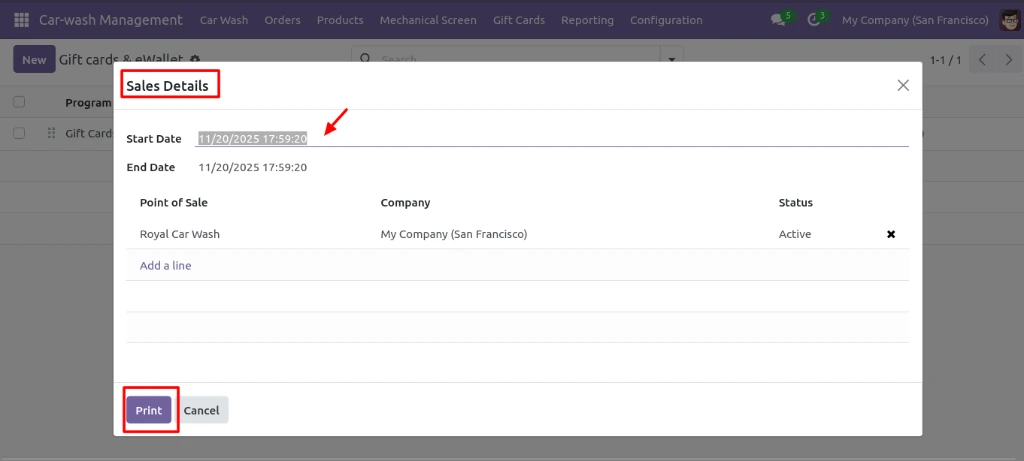
The Sales report allows you to filter your report by start date, end date. After applying the filters, you can view and print the complete sales summary based on your selected criteria. This helps in checking specific sales records easily.
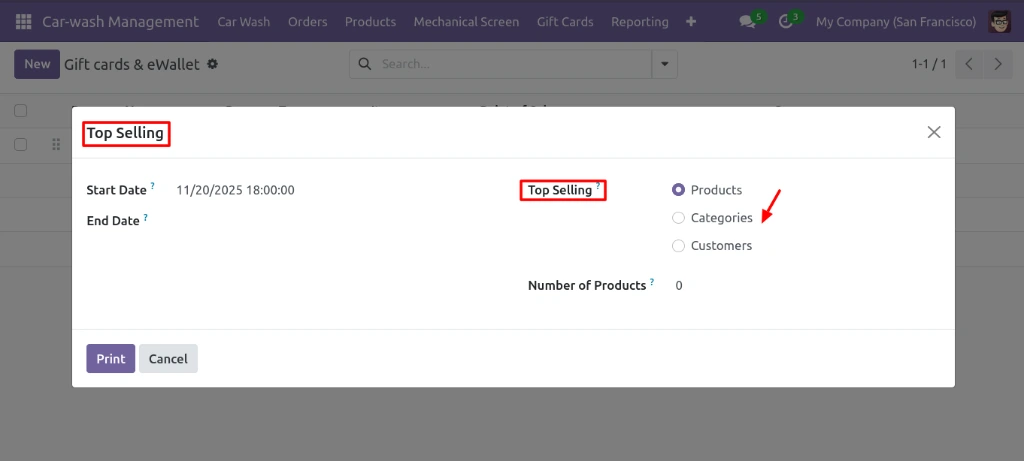
Top Selling
To view the Top Selling Report, select the start and end date for the period you want to analyze. The report shows the products with the highest sales, grouped by categories, and also displays customer-wise sales to see which customers bought the most.
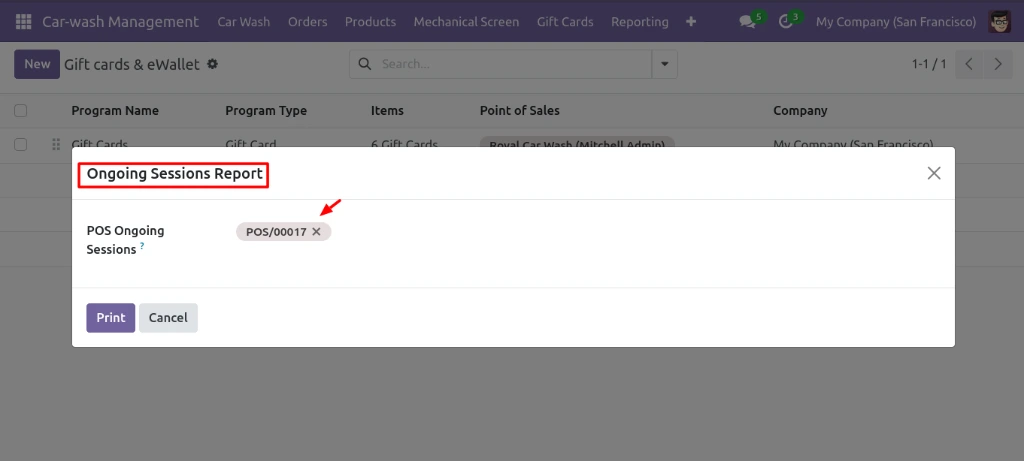
Ongoing Session report
The Ongoing Session Report shows all active sessions with details such as date, report time, session status, opening balance, tax returns, department-wise sales and payments. This report helps track real-time sales, payments and session activities in a clear and organized format.
6. Configuration
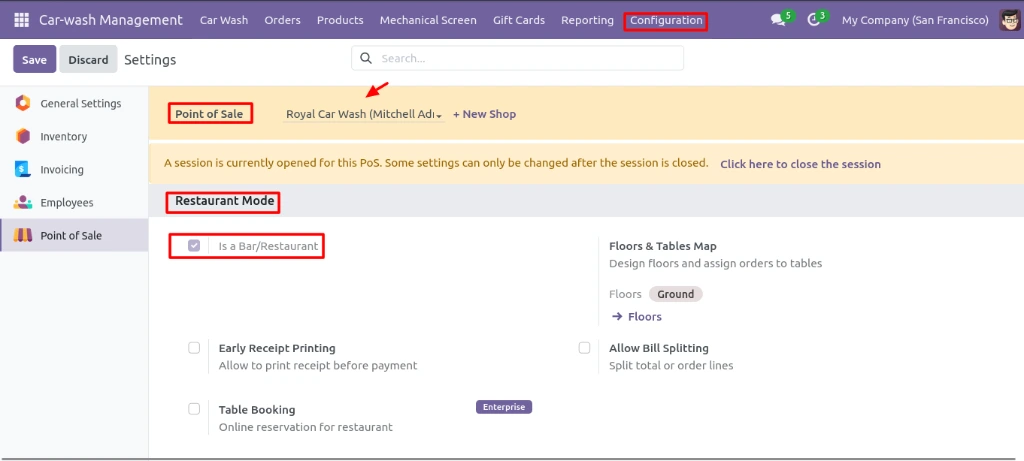
In Odoo, select the POS session you want to set up like Is a Bar / Restaurant and in the POS Dashboard you need to select the Booking order option in order to have the Booking option in POS, then click Save to apply changes.
7. Process Flow for Car Wash Management
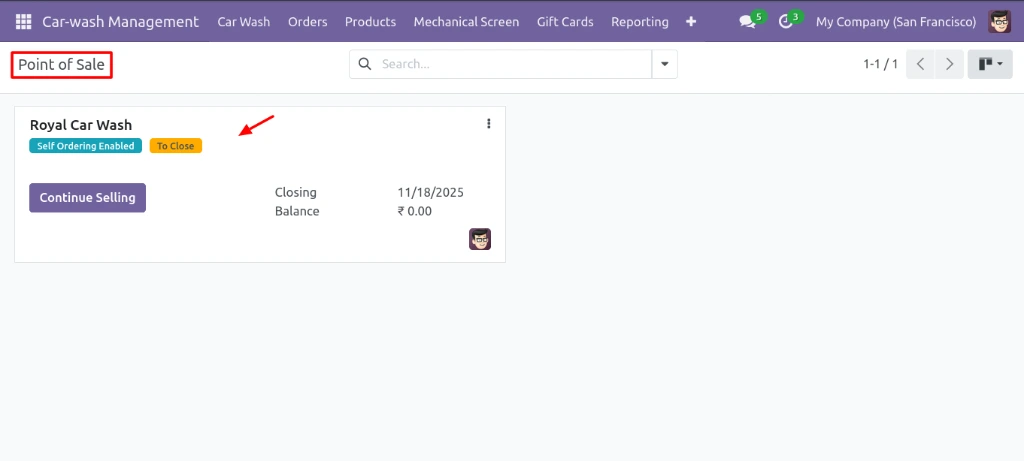
When you open the POS screen in Odoo, it shows the POS name and closing balance, which displays today’s date and the current balance. This helps track the session’s real-time cash status.
Continue Selling
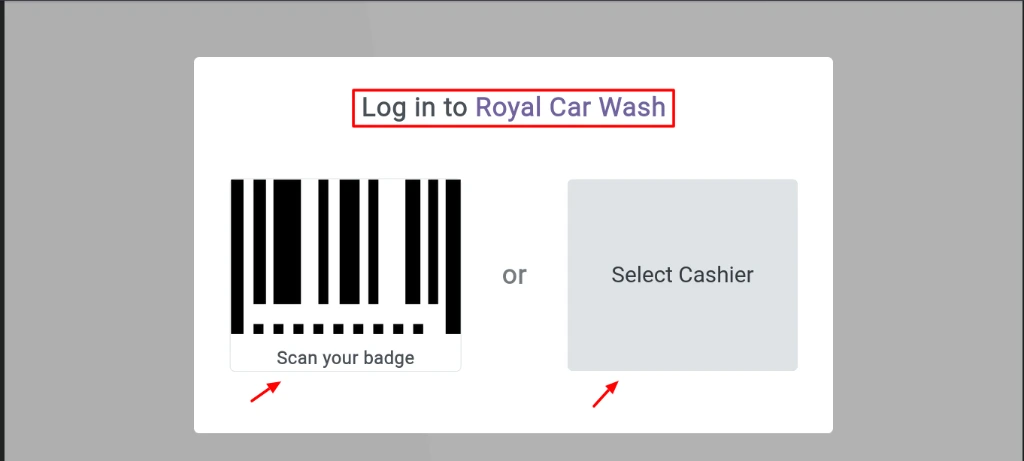
When you click Continue Selling on the POS screen, it will take you to the login screen to start or continue the session.
Log in Screen
On the login screen, you have two options : scan your badge or select the cashier / user. You can choose whichever method you prefer to log in and start the POS session.
Select the Cashier
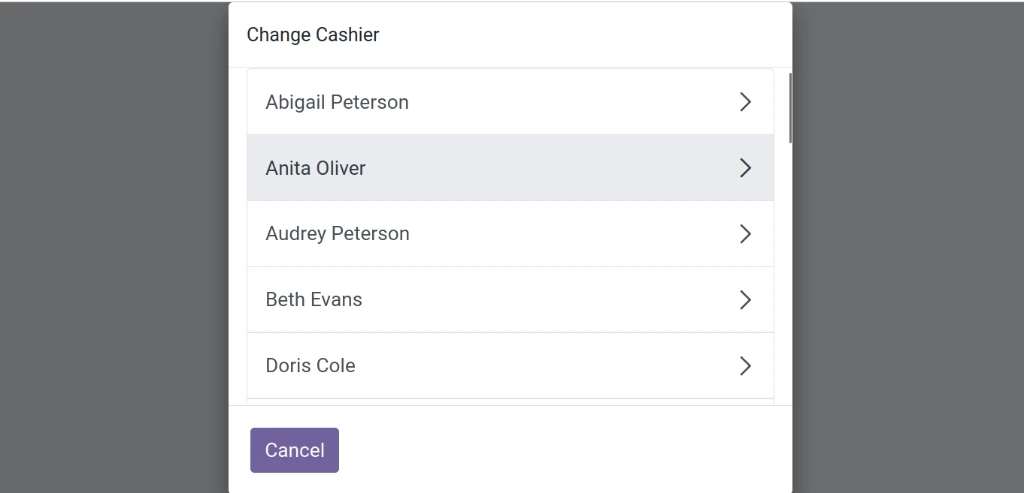
Once you select Cashier / User, the list will be displayed for you to choose from.
POS Screen
Once you select the cashier, the POS screen will open to start the session.
Select the Customer
Select Customer, the customer list will open. You can choose an existing customer, view their previous orders or create a new customer if needed.
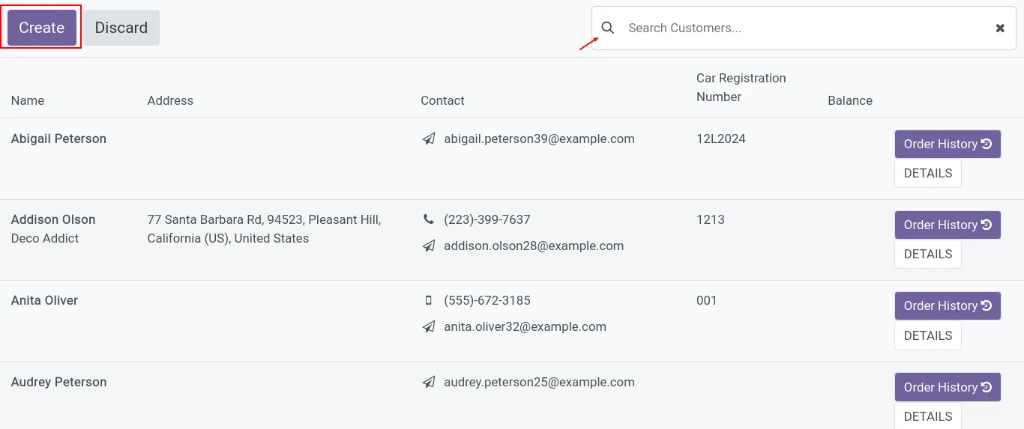
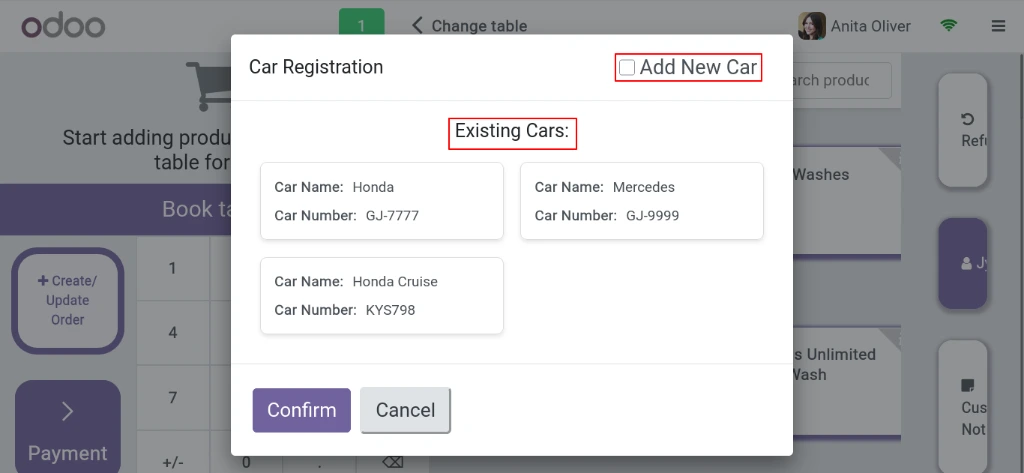
Once you choose the customer you can select from their existing cars or add a new car. This lets you record which car the customer needs service for.
Select Technician
Next, choose the technician. The list will show existing technicians and you can also create a new technician. Note that if a technician is already assigned to another task, they will not appear in the list.
Select the Product
Then, select the product available in POS. You can browse through different categories or search for a product. Add the services needed for the customer’s car, such as car wash or other maintenance.
After clicking Create and Update Orders, the order will be sent to the mechanical team for processing the service.
After creating the order, it will appear in the Mechanical Screen, where all cars waiting for service are tracked before work begins.
Once technicians accept the service from the Car Waiting List, it will move to the Work in Progress stage, indicating that the service has started.
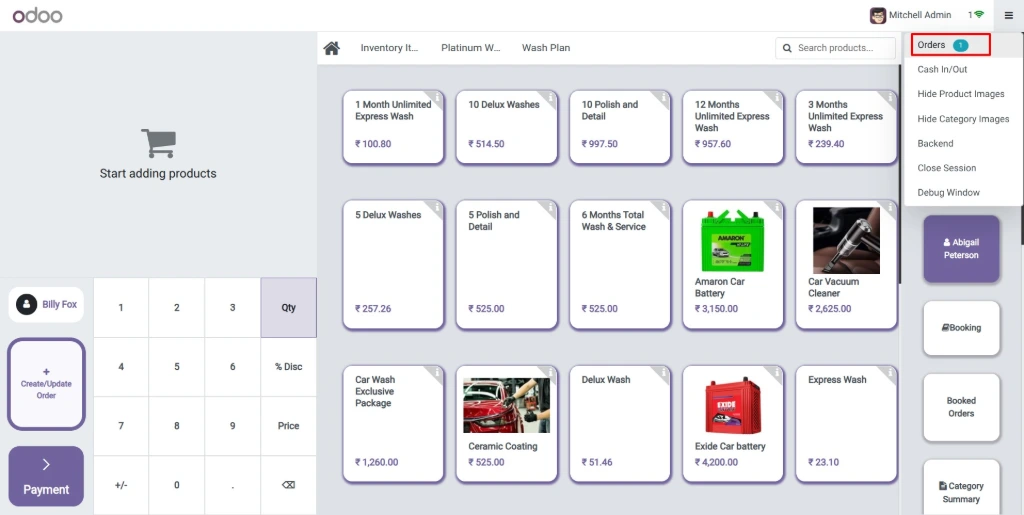
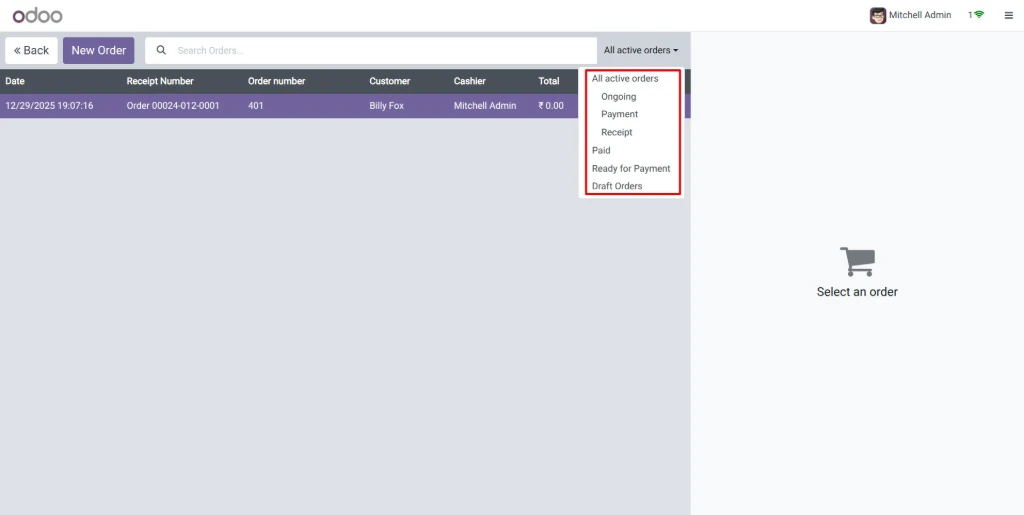
Then, inside the POS session go to Orders to view all active orders, including Ongoing, Payment, Receipt Paid, Ready for Payment and Draft Orders. This helps track the status of each order in the system.
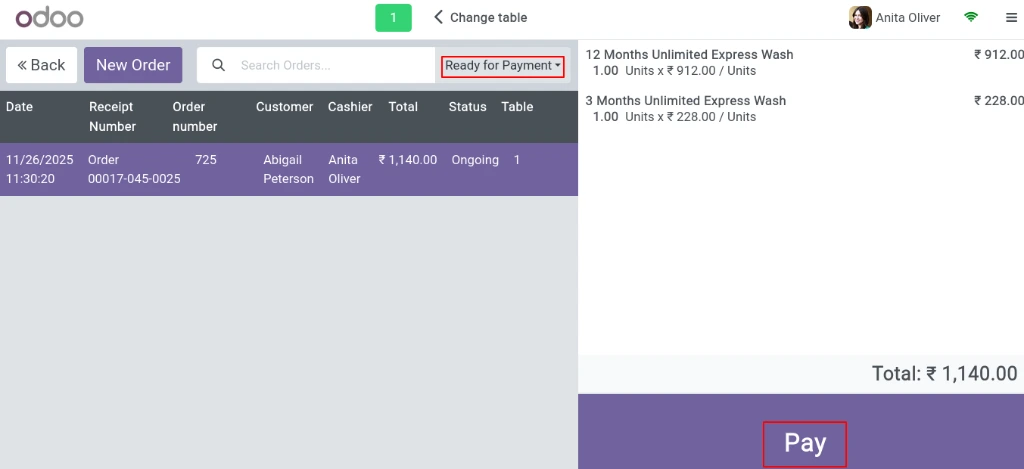
Next, click Ready for Payment to process orders that are completed and awaiting for customer payment.
Click on the Payment Method to select how the customer will pay such as Cash, Card, or other payment methods.
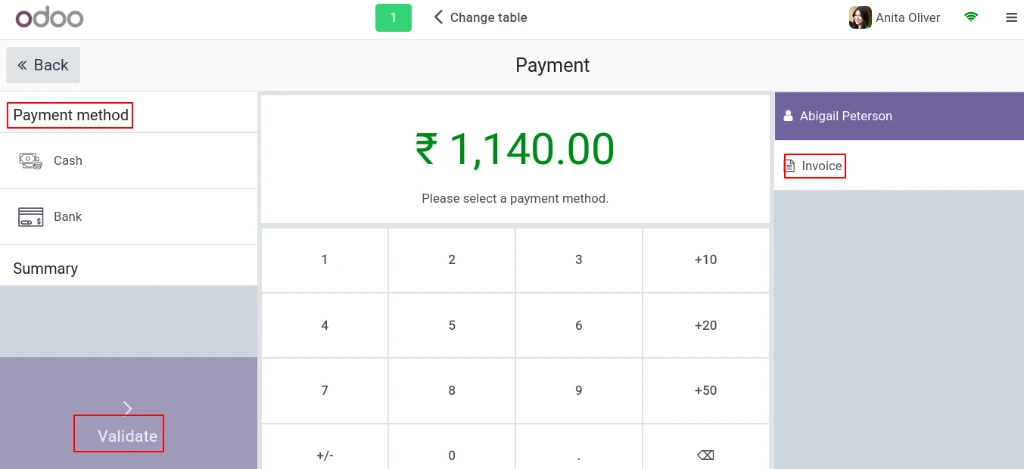
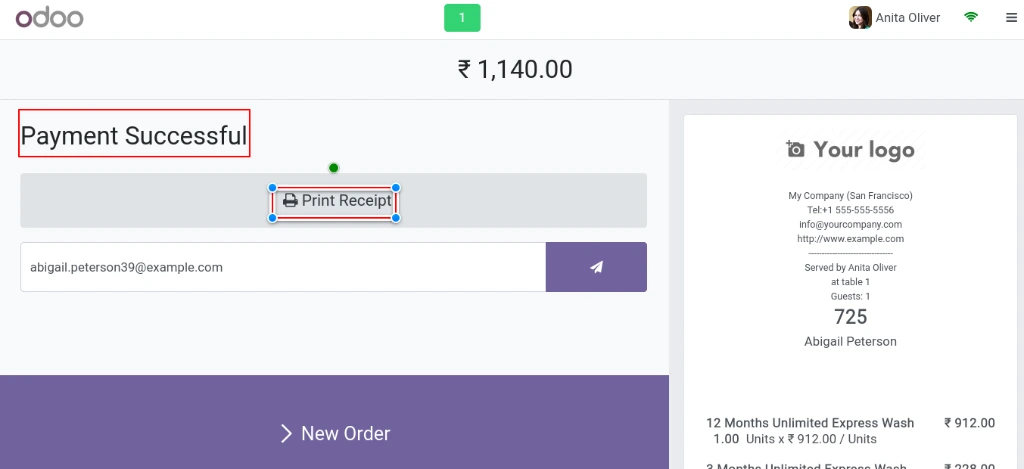
Once the payment is completed, you can print the receipt / tax invoice for the customer or you can send an email / whats-app as well directly from the POS system.
Conclusion
The Car Wash Management System in Odoo ERP simplifies daily car wash operations through an easy to use POS interface. From customer bookings and technician assignment to service tracking and payment processing, every activity can be managed efficiently from a single platform. With features like real time service updates, loyalty programs, gift cards, detailed reporting and multi-outlet management, the system helps businesses improve operational efficiency, deliver faster customer service and increase overall profitability. It is a complete solution designed to enhance both customer experience and business performance. You can Contact Us for the demo session online.