
Many people use a Salla store and so will regularly receive orders, gain new customers and experience changes to pricing and/or stock. Sales and accounting teams often manually input this data into Odoo. People can easily input incorrect information and this is then used for quotations, invoicing and stock management.
The Odoo Salla Connector allows integration between Salla and Odoo. Specific data can be imported into Odoo and selected data can then be exported back to Salla. Automated scheduled synchronisation can also be set up. Information about each synchronisation is shown within logs.
Summary
Item | Description |
Product | Odoo Salla Connector |
Category | Sales |
Integration | OAuth authentication for your Salla app |
Compatible with | Sales, Inventory, Invoicing and Discuss |
Licence | LGPL-3 |
Developed by | Serpent Consulting Services Pvt. Ltd. |
Who Is It For?
Salla merchants – manage both sales and back office in Odoo and avoid double data entry.
Sales teams – view online orders within Odoo as sales orders for scrutiny.
Catalogue managers – ensure uniformity of products, categories and brands between Salla and Odoo.
Operations team – view at a glance the outcome of synchronisations.
Typical Issues
Manual data input into Odoo for online orders.
Discrepancies exist between Salla and Odoo data.
Multiple entries occur.
It is not always clear when synchronisations were last completed.
Poor synchronisation may not be recognised.
Areas That Can Be Synchronised
Data | To |
Products | Import / Export |
Customers | Import / Export |
Orders | Import / Export |
Categories | Import / Export |
Brands | Import / Export |
Customer Groups | Import / Export |
Order Statuses | Import / Export |
Payment Methods | Import only |
Back Office to Store
Connect – input your Salla app credentials and authorise store access.
Activate – select which instance to activate.
Import – import relevant data from Salla into Odoo.
Export – export specific Odoo data to Salla.
Automate – activate desired automated synchronisations.
View – examine the dashboard, logs and digest report.
Advantages of the Salla Connector
1. Connect to your Salla Store
Within Odoo, generate a Salla instance and input the Client ID, Client Secret and Callback URL. These should correspond to those defined in your Salla Partners Portal for the app. Click ‘Connect to Salla’.
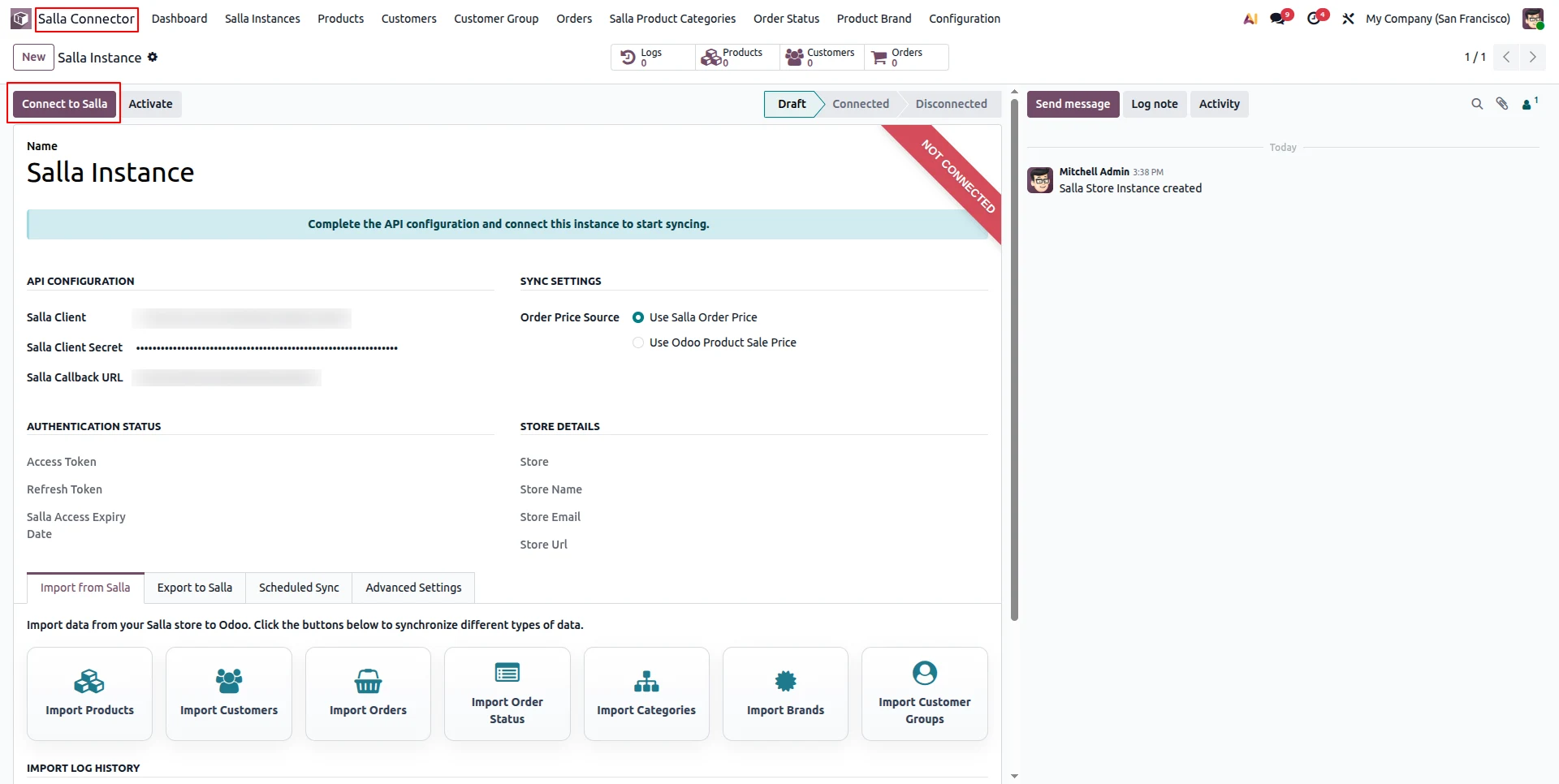
Menu path: Salla Connector > Salla Instances; click on the instance and then ‘Connect to Salla’.
Salla then prompts you to log in and displays the app’s permissions.
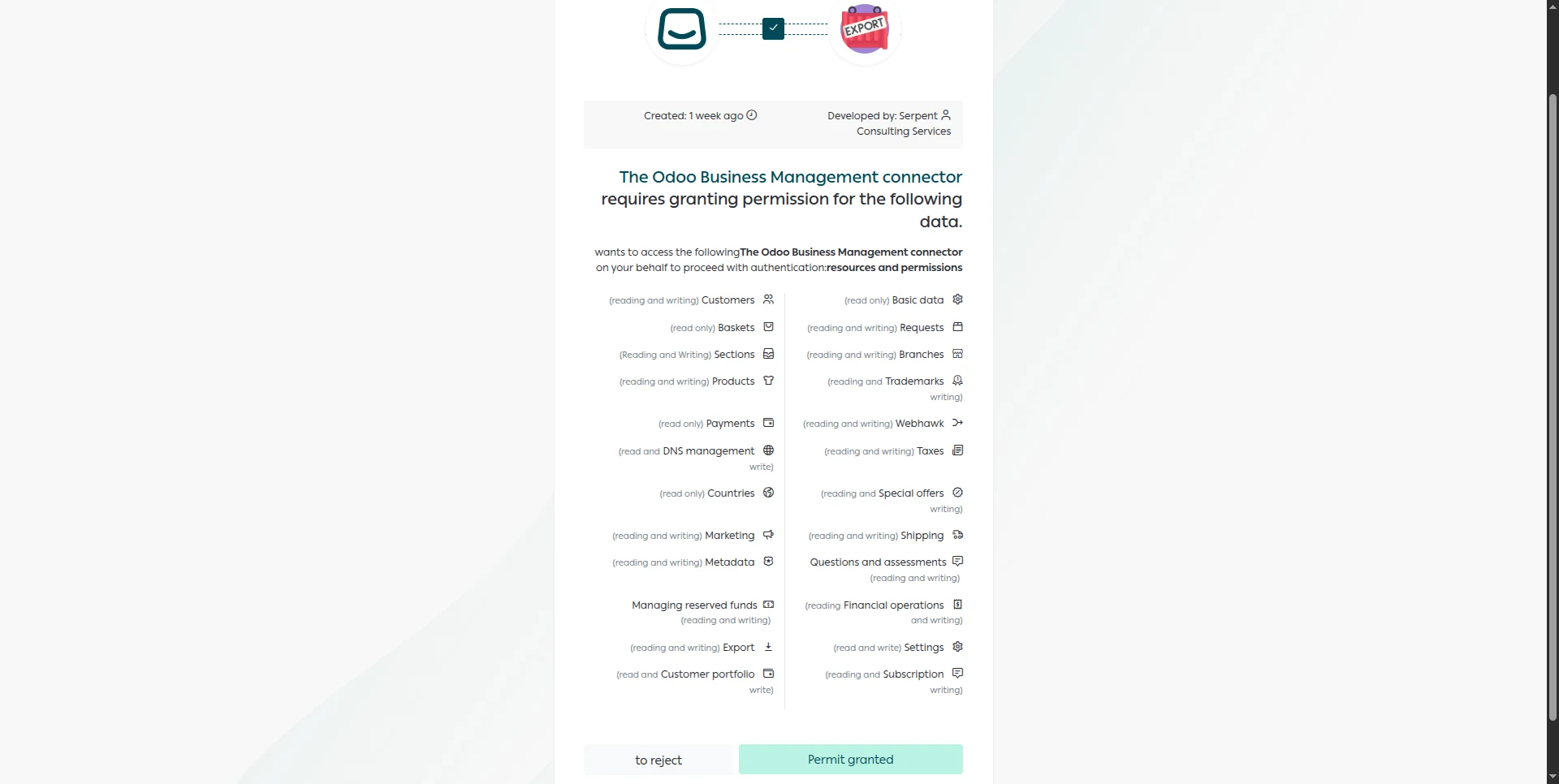
Authorising the Salla app
After connecting, store information is then displayed on the instance. The access token is automatically renewed when it nears expiration and a request is made. Multiple instances can be created however, only one can be active at any one time.
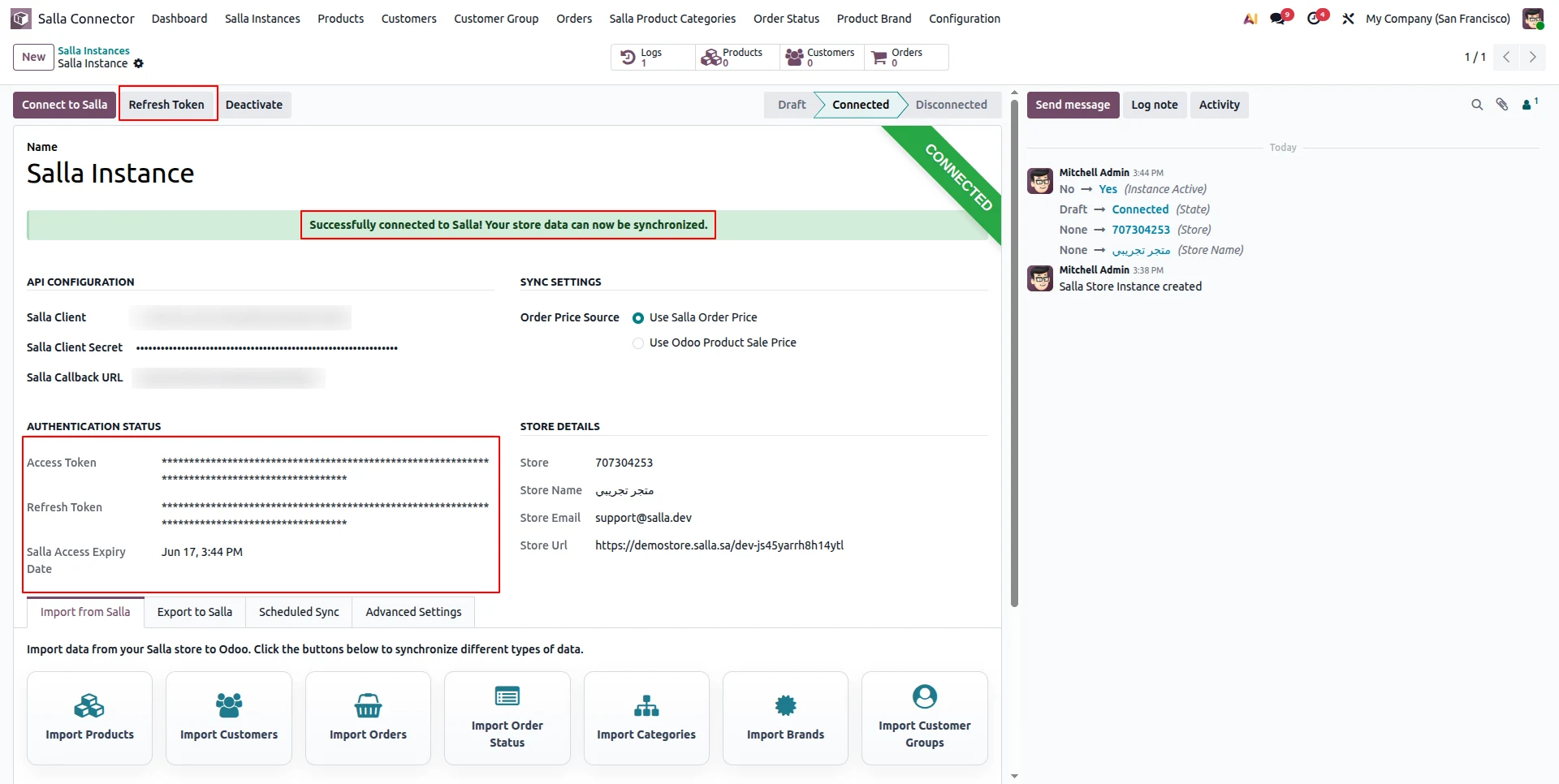
Menu path: Salla Connector > Salla Instances; click on the connected instance.
2. Import Data from Salla
The ‘Import from Salla’ tab allows import of products, customers, orders, order statuses, categories, brands and customer groups. Buttons for each of these areas allow configuration, for example, of a date range. Payment methods can also be imported using the same tab by selecting this data type.
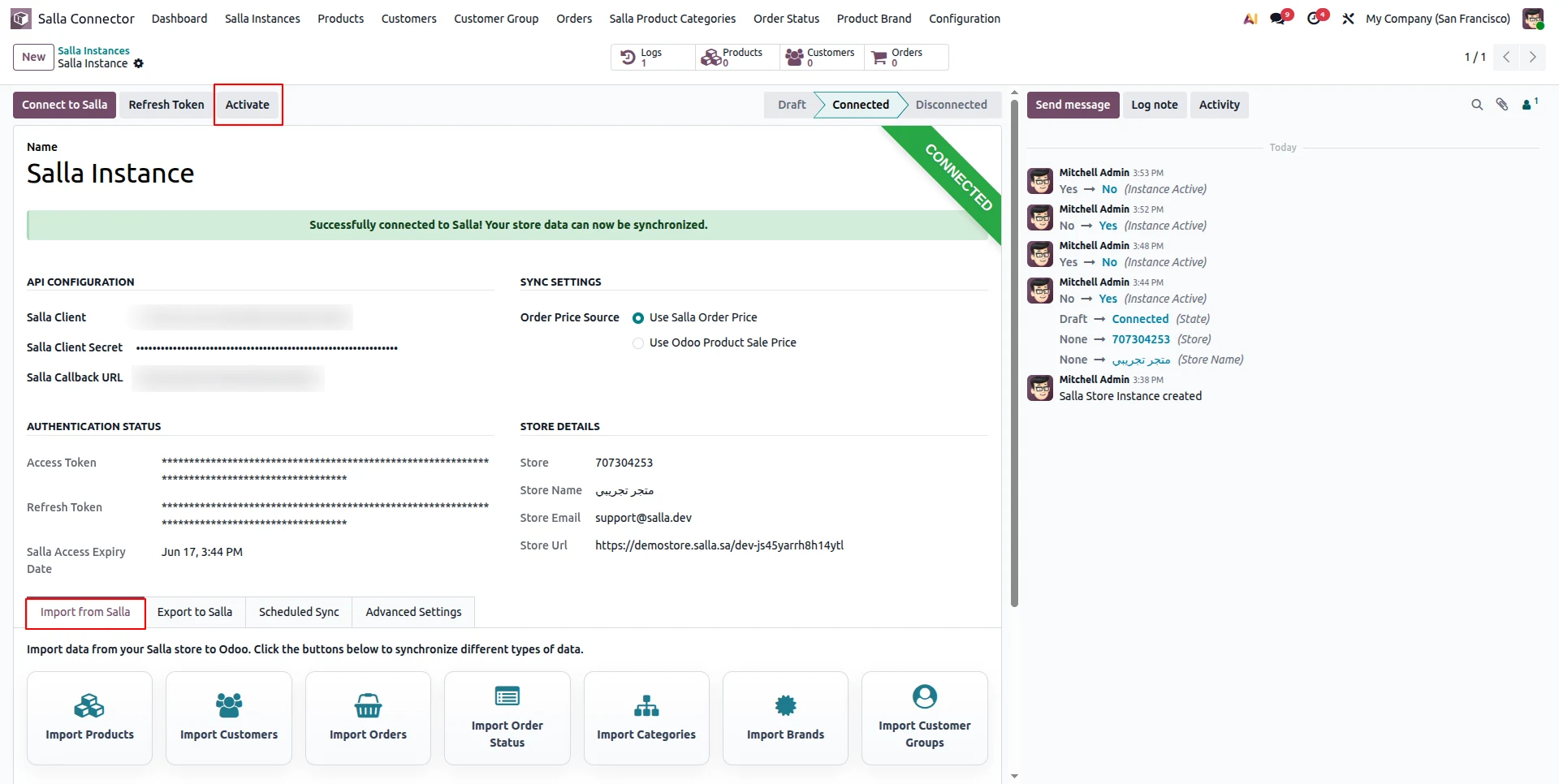
Menu path: Click on the instance and then ‘Import from Salla’.
All import activity is documented within the import log history along with its outcome.
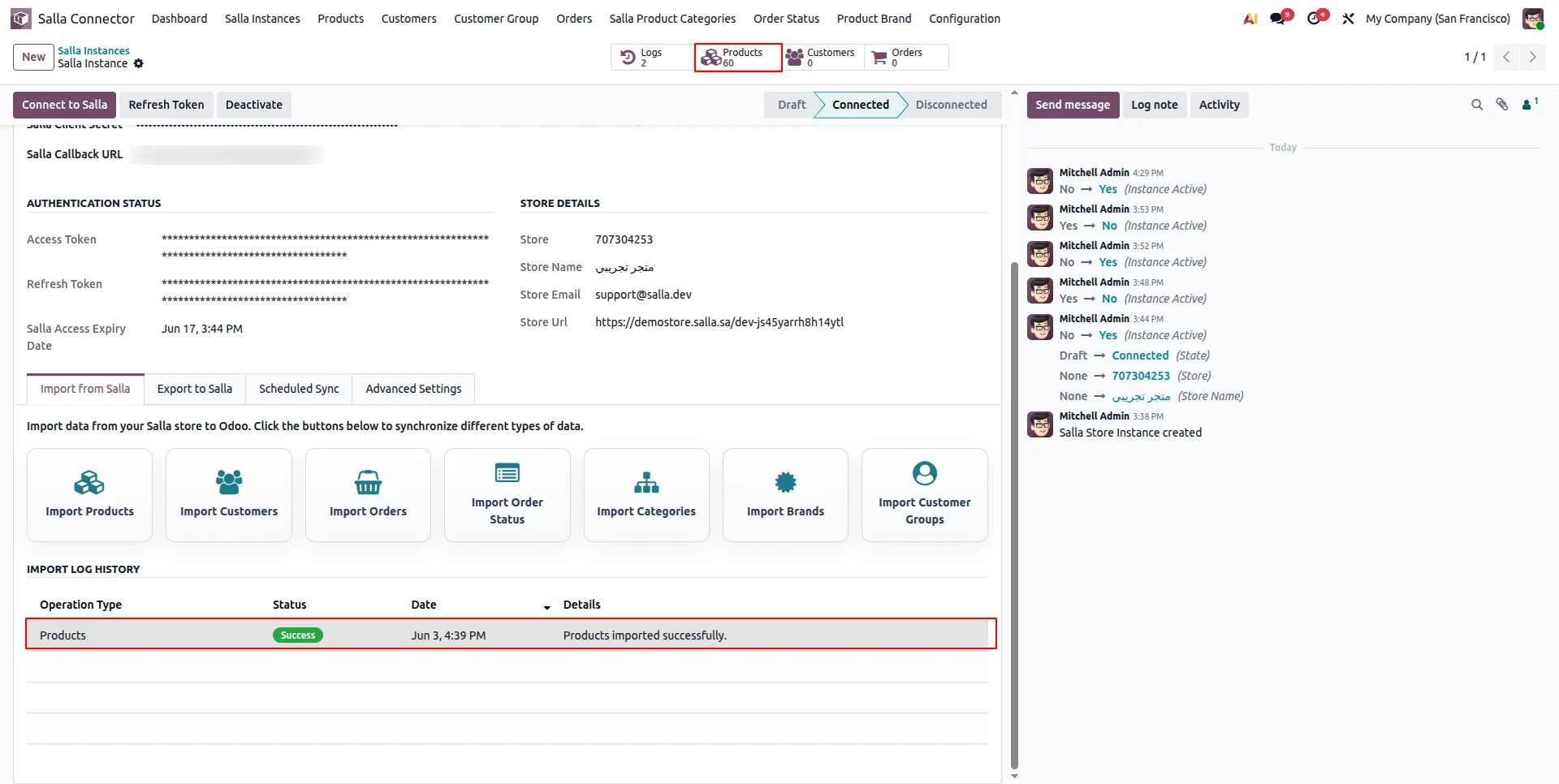
Menu path: Click on the instance, then ‘Import from Salla’, followed by ‘Import Log History’.
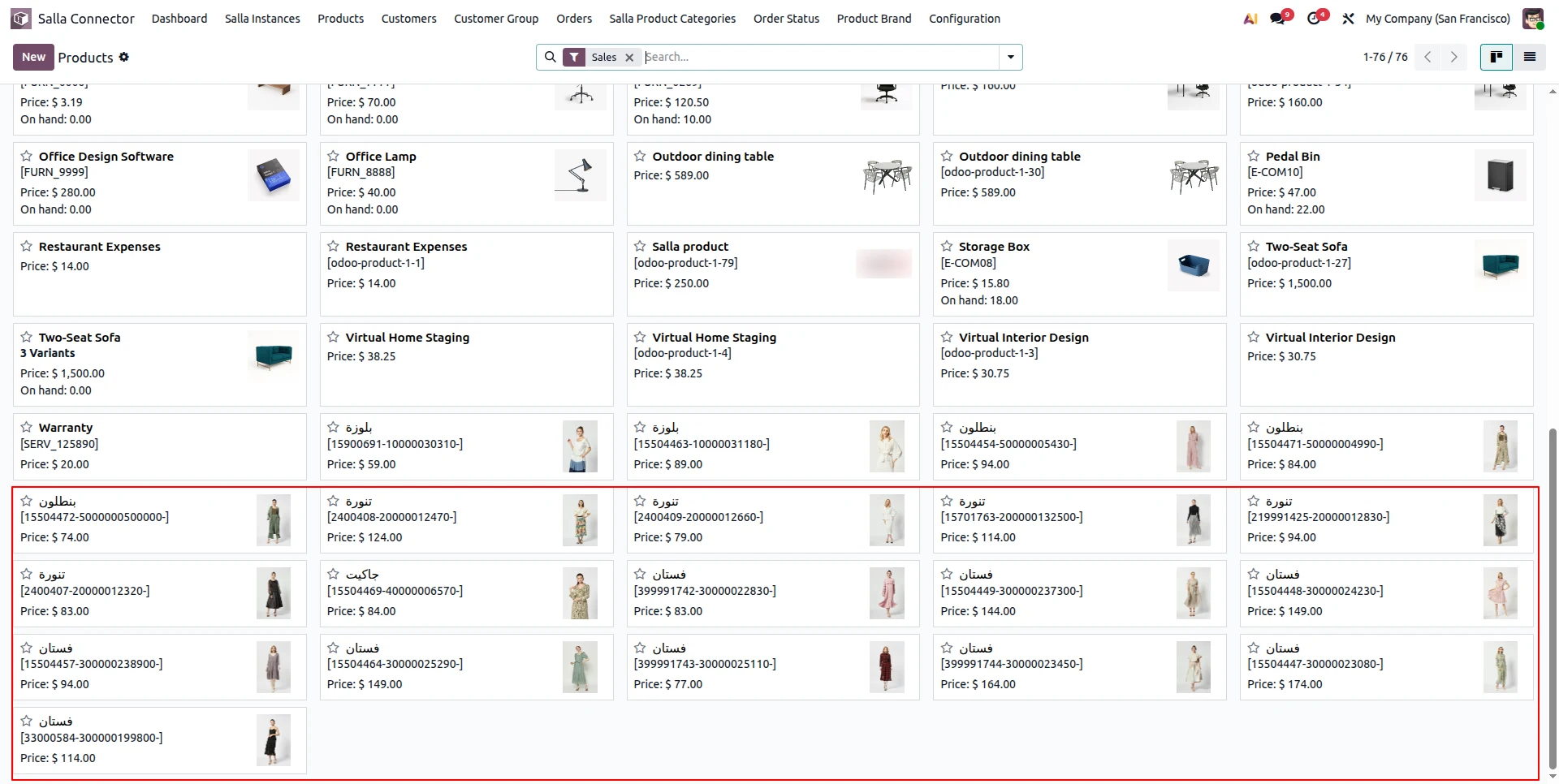
Menu path: Salla Connector > Products
3. View Salla Orders in Odoo
Every Salla order is converted into an Odoo sales order and associated with a customer. Should neither of these not already exist within Odoo, the connector searches for and generates them if nothing is located. Sales orders are not automatically confirmed, therefore allowing your team to review them.
Prices for order lines can be sourced from either Salla or Odoo. Where no suitable price exists on Salla, the Odoo sales price is utilised. Prior to confirming an order, verify that tax, delivery and overall costs are correct.
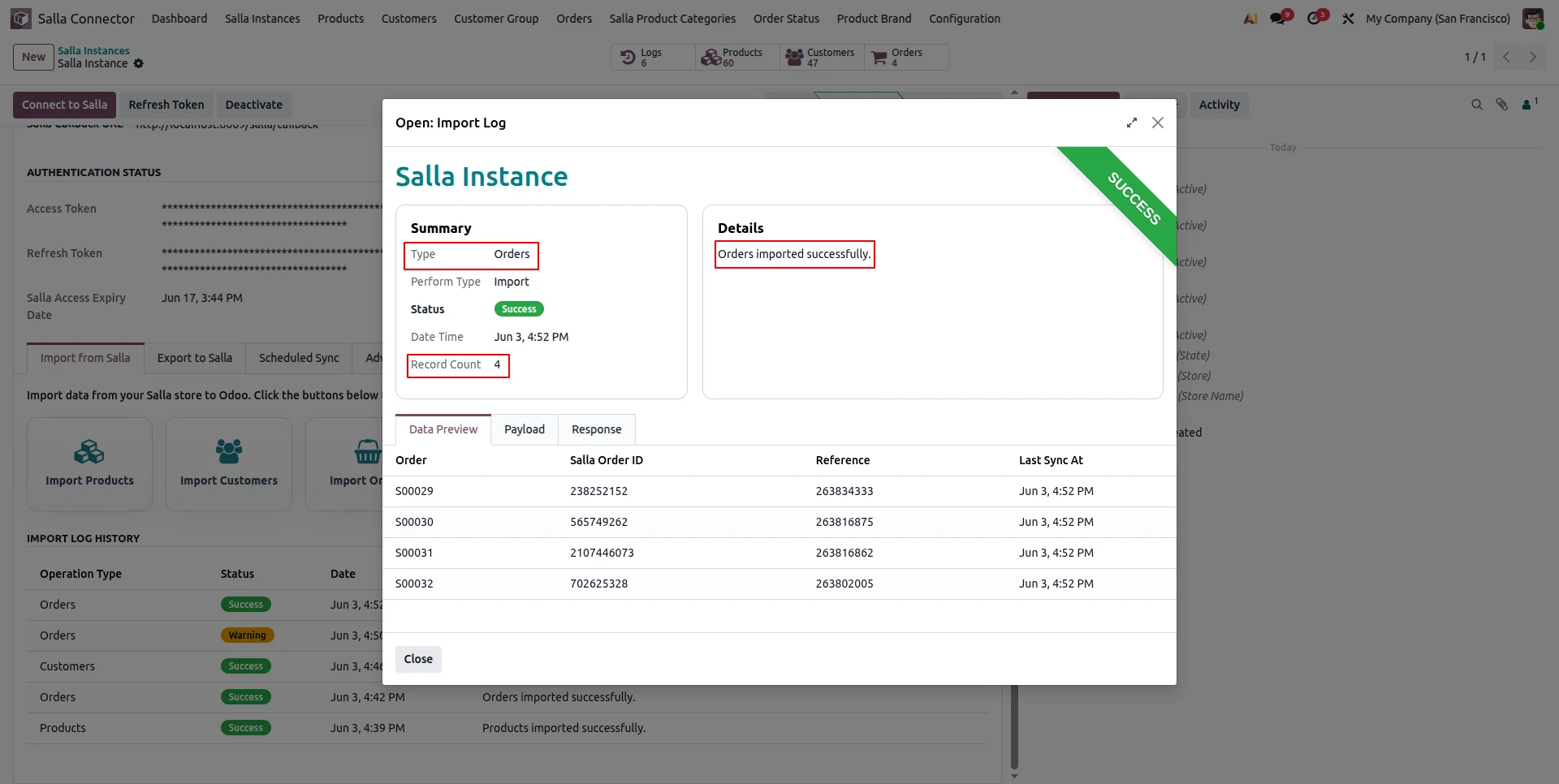
Menu path: Salla Connector > Salla Instances; click on the order import log.
4. Export Odoo Data to Salla
Products, customers, orders, order statuses, categories and brands and customer groups can be exported. Salla has its own data validation process and so omissions including phone number, address and/or stock levels can lead to export problems. If not all data is successfully exported, inspect both the Salla data and the synchronisation logs.
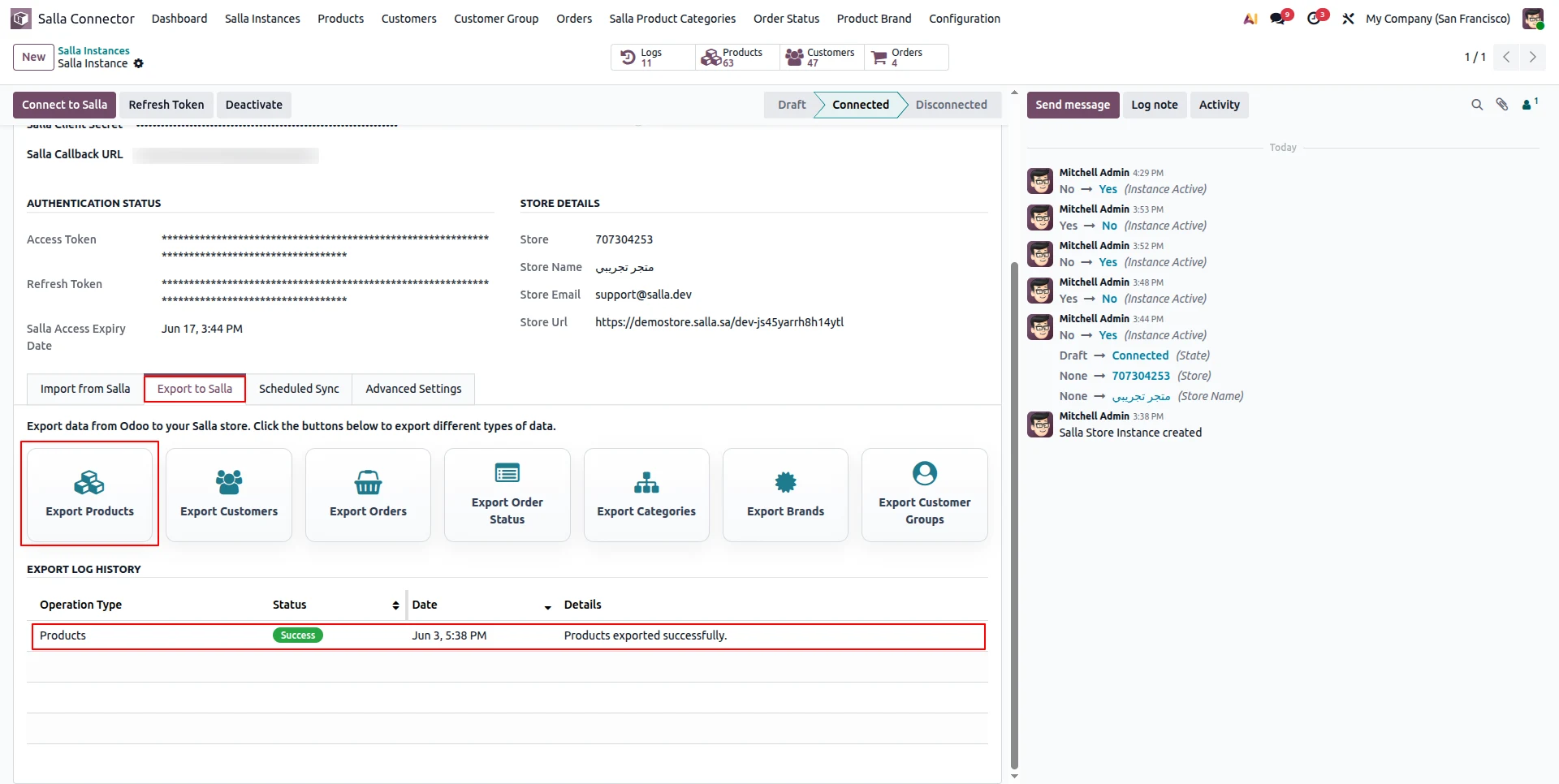
Menu path: Click on the instance and then ‘Export to Salla’.
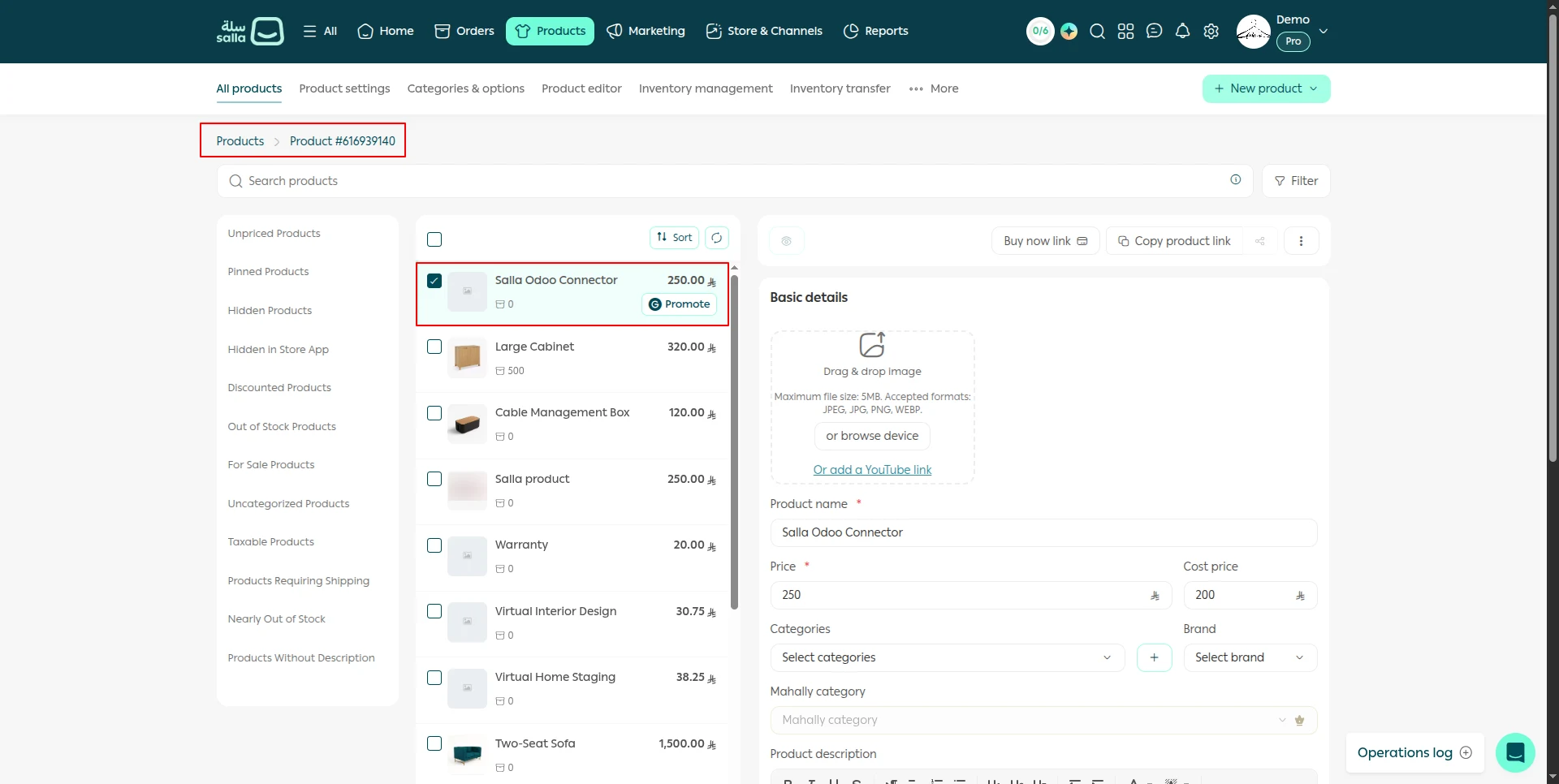
Example of a product export to Salla
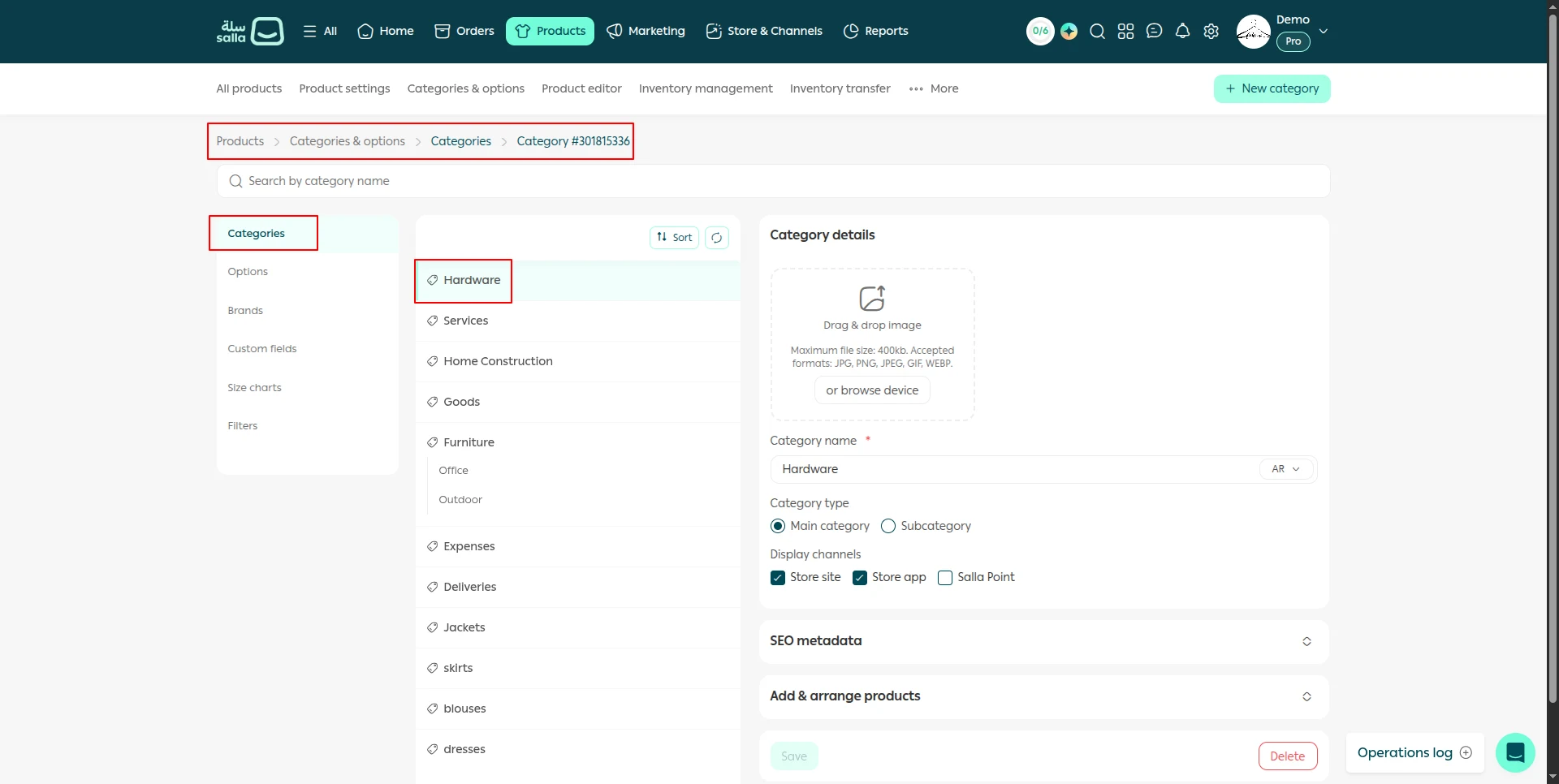
Example of a category export to Salla
5. Bindings
The connector maintains information on which Odoo record corresponds to which Salla ID. It also includes the last synchronisation date. This helps to avoid multiple entries. Furthermore, during an export, pre-bound and unaltered customers and orders can be excluded.
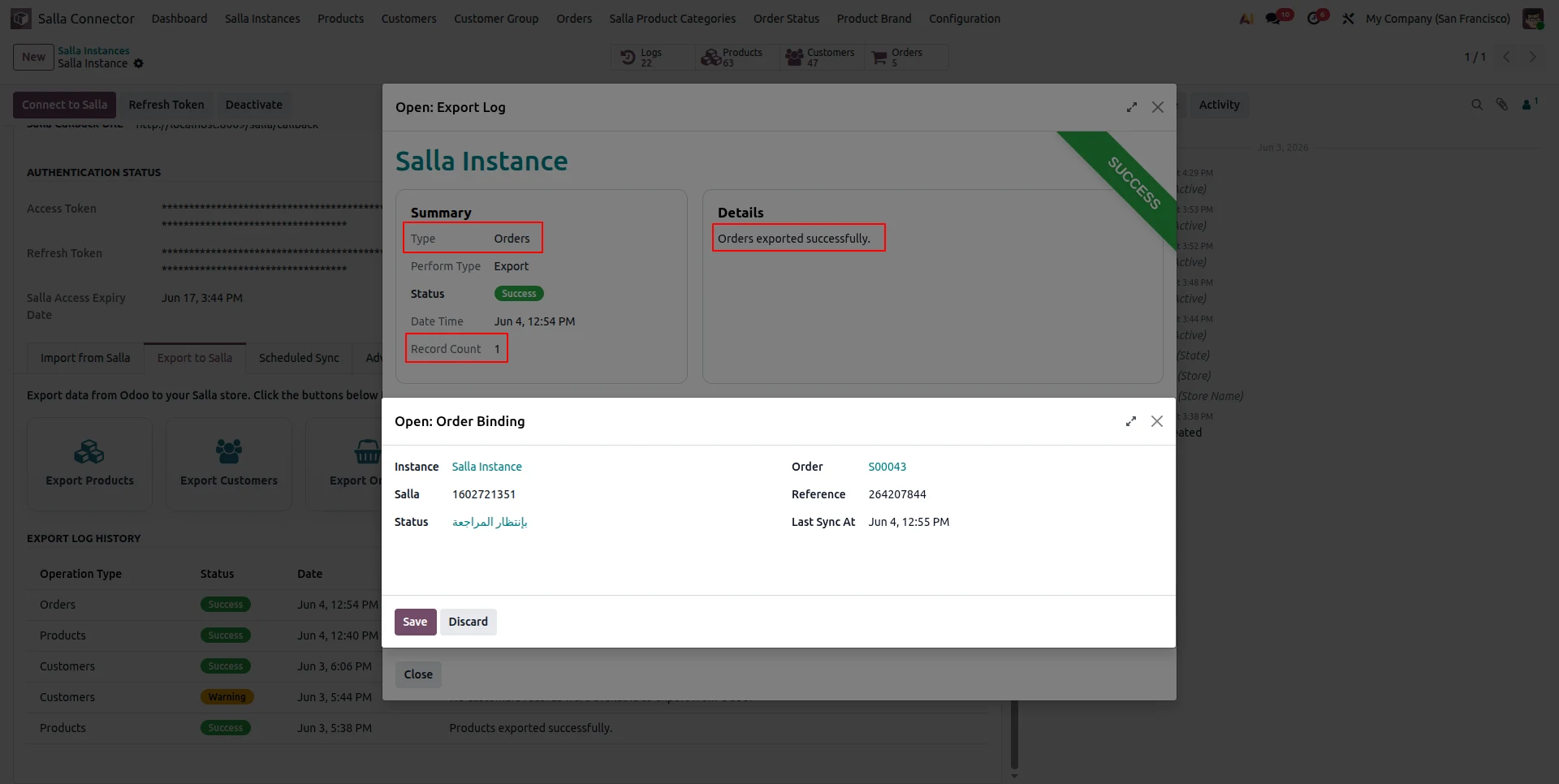
Menu path: Click on the order export log and then ‘order binding’.
6. Export Stock Levels to a Salla Store Branch
As well as exporting products, the connector also exports current stock levels from Odoo. An employee can input a Pickup Branch ID or retrieve a branch from Salla and therefore specify where the stock should be exported to.
7. Automate Synchronisations
Imports of orders can be automated to happen every hour. Product and customer data can be automatically imported daily. For each instance, these synchronisations can be activated or deactivated. Order imports are automatically activated.
Within the ‘Scheduled Sync’ tab, order imports are managed via the ‘Order Sync’ function and product imports are controlled by the ‘Inventory Sync’ function. Additional automation options are detailed within ‘Advanced Options’.
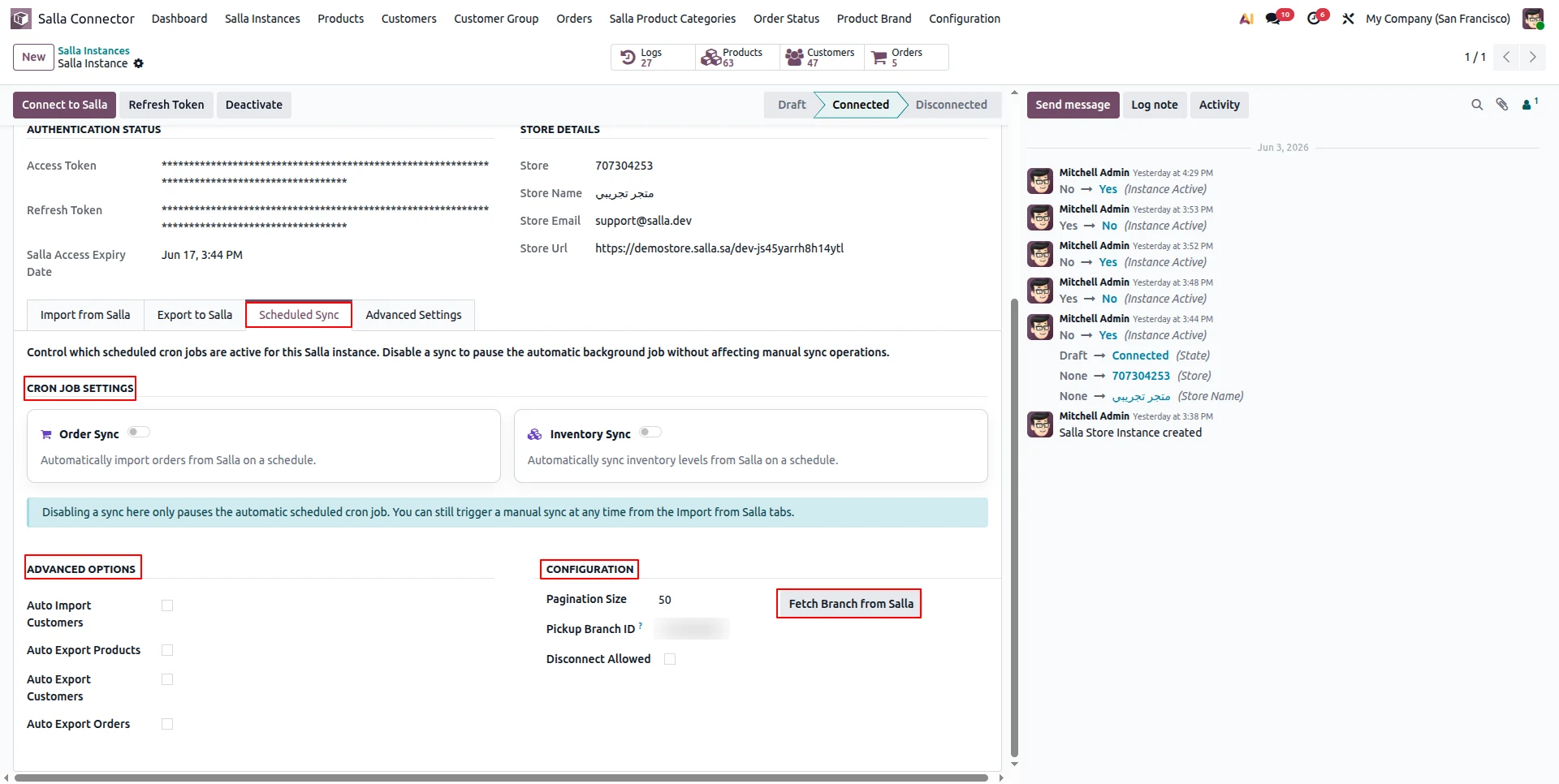
Menu path: Click on the instance and then ‘Scheduled Sync’.
8. Webhooks and Alerts
Each instance contains a webhook URL. Information relating to events is then documented in the logs. Authorisation of the app can also affect connection tokens. Although webhooks can be used, orders, products and customers continue to be imported either manually or automatically. A webhook secret can be input to confirm the authenticity of each webhook request.
An alert email can also be configured. Should the access token be unable to be renewed, this email notifies you.
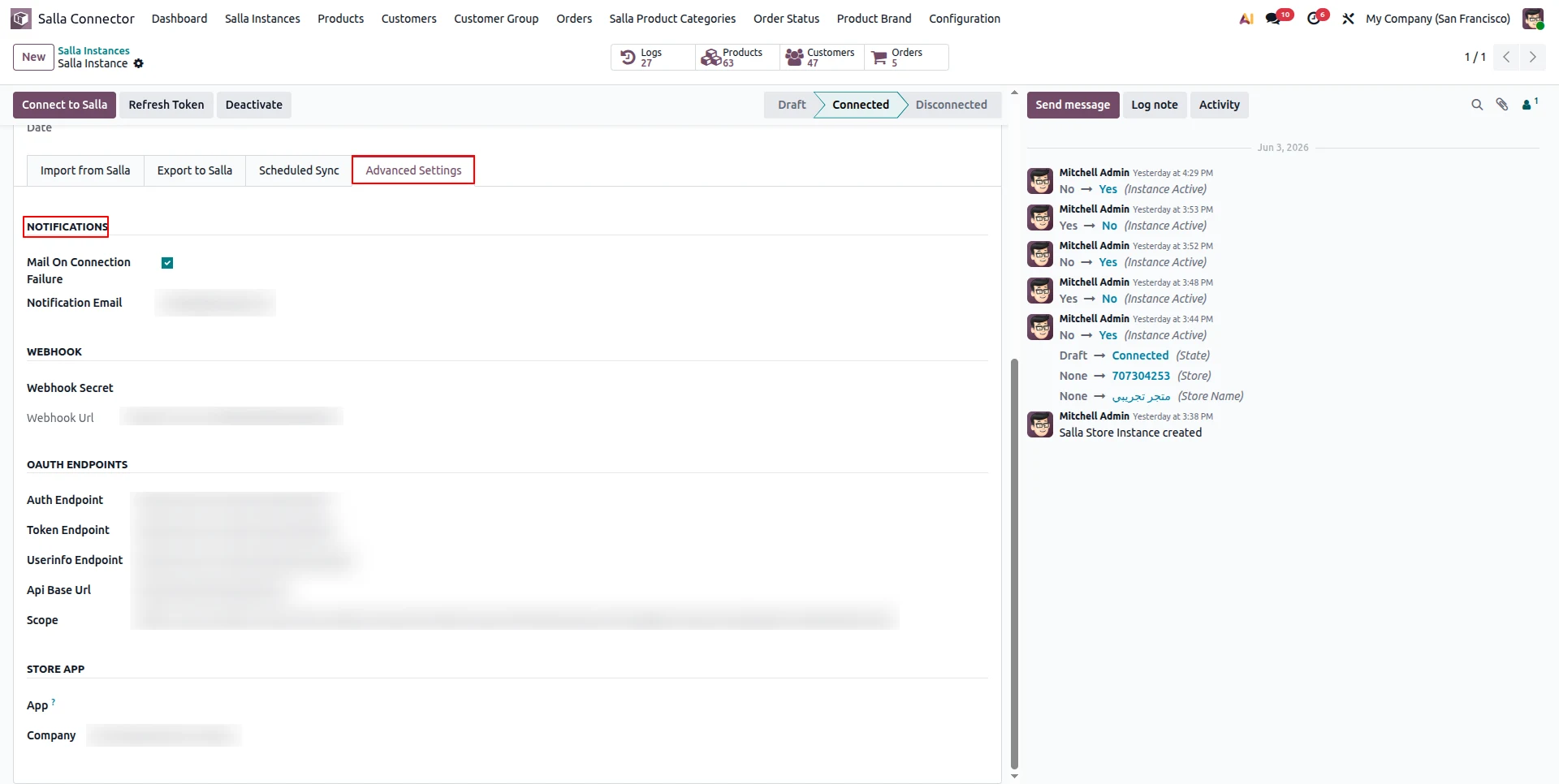
Menu path: Click on the instance and then ‘Advanced Settings’.
9. Dashboard
As well as displaying the total numbers of products, customers, orders, categories, brands and customer groups and order statuses that have been synchronised, the dashboard also displays the synchronisation logs which can be searched by import or export activity.
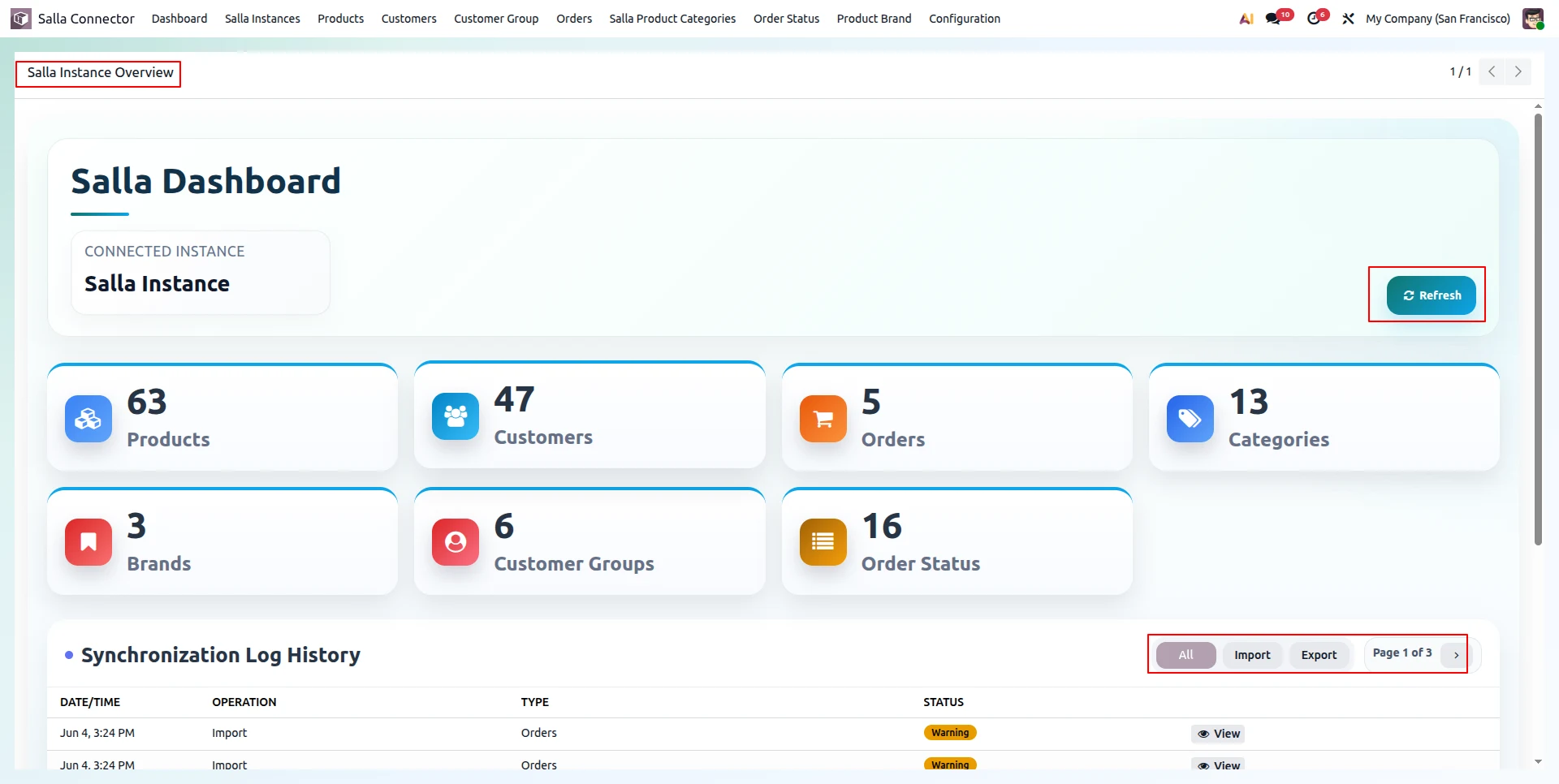
Menu path: Salla Connector > Dashboard
10. Logs and Digest Reports
Activity, data type, status and messages are all logged. Each day a digest is generated which summarises import/export successes and warnings. It also states how many items were imported and exported. If an alert email has been configured, the digest is emailed.
Menu path: Salla Connector > Configuration > Logs
Menu path: Salla Connector > Configuration > Digest Reports
Why Choose the Odoo Salla Connector?
Feature | Advantage |
Bi-directional data flow | Reduced double data entry |
Bindings | Reduced duplication |
Automated synchronisation | No need for manual synchronisation |
Ability to source order line prices from either Salla or Odoo | Further control over orders |
Logs and digest reports | Straightforward review of synchronisation outcomes |
Dashboard | Easy overview of synchronised data |
FAQs
Products, customers, orders, categories, brands, customer groups and order statuses. Payment methods can also be imported.
Yes. Products, customers, orders, categories, brands, customer groups and order statuses can be exported. However, payment methods can only be imported.
Yes. Imports can be automatically completed either hourly or daily. In addition, any synchronisation can be manually initiated. Nevertheless, this is not live synchronisation.
Whilst multiple instances can be created, only one can be activated at a time.
No. As a third party application, it cannot be installed onto Odoo Online. Instead, utilise either Odoo.sh or an on-premise version.
Please email contact@serpentcs.com to discuss your needs.
To summarise
The Odoo Salla Connector enables integration between your store and Odoo. Bi-directional data flow is supported and automated synchronisation can be set up. Logs detail the outcome of each synchronisation. Less time is therefore spent by your team on re-entering data and the synchronisation process can easily be reviewed.
Why not arrange a free initial consultation with our Odoo specialists to explore how this could work for you?
Book a free consultation with our Odoo experts.
What you will get
Salla Connector setup
Salla app and OAuth configuration
Sync scheduling and logs
Odoo eCommerce consulting
Contact us View on Odoo Apps Store